Rates
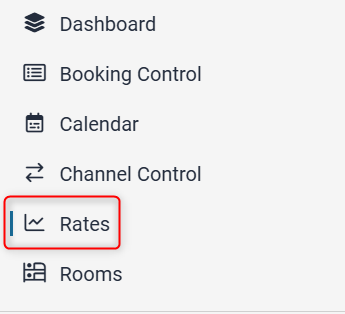
In the menu click Rates.
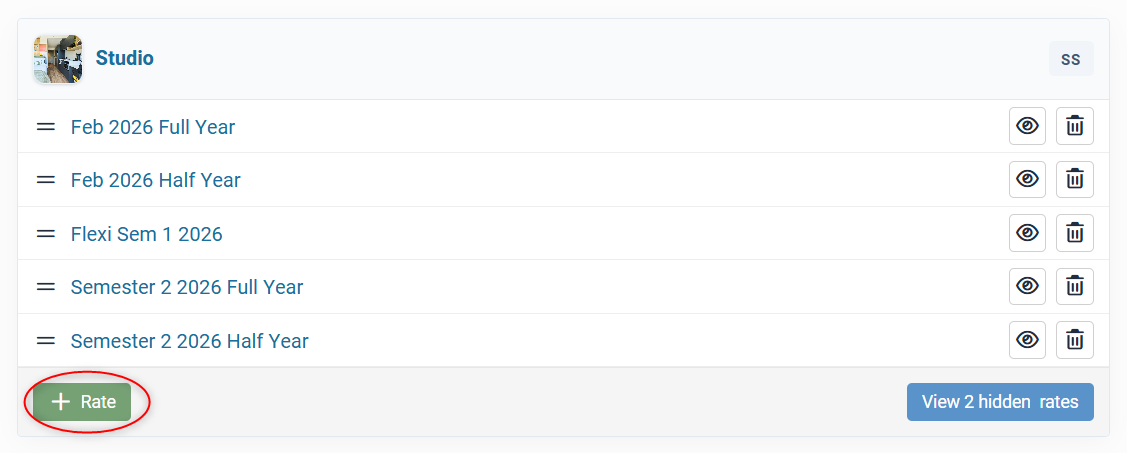
UniLodge have different rates defined by the period of the stay e.g:
- Semester 1
- Semester 2
- Full Year
Creating a new rate type
Click the + Rate icon on the relevant room type
General
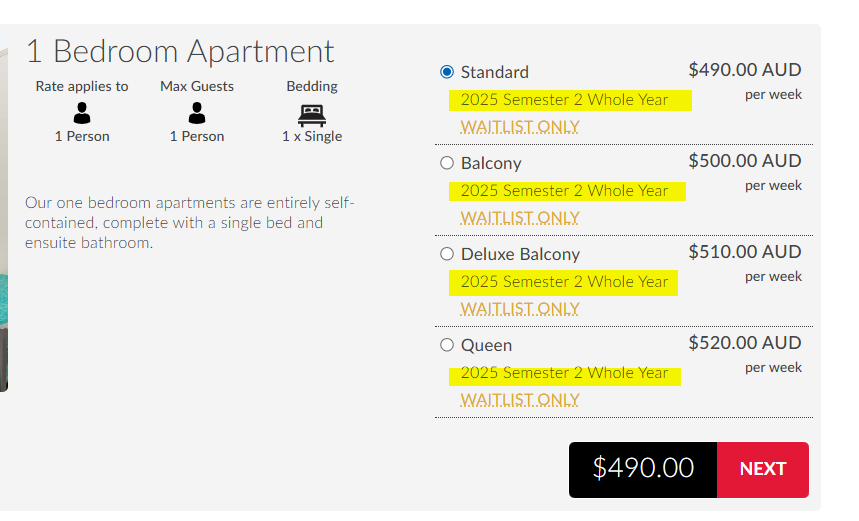
Rate Name – enter the name of the rate - this is displayed on the live site as shown:
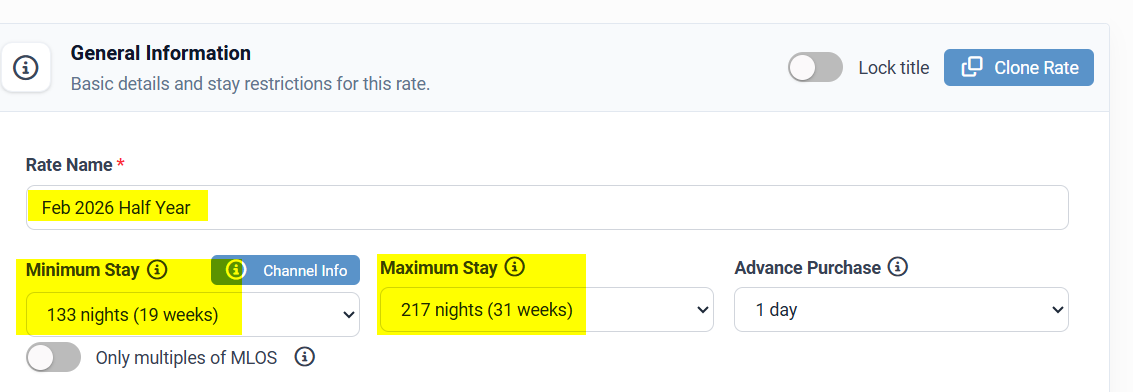
Minimum Length of Stay – select the minimum number of nights required for an application to be made on this rate type.
Maximum Length of Stay - select the maximum number of nights an application on this rate type can be made for.
Advance Purchase Period - select the minimum number of days/weeks before arrival that the rate type must be booked.
Rates
To enter rate periods, enter a From and To date and enter the relevant price in the Weekly Rate textbox.
You can add multiple rate periods at a time by clicking the + Add Period below the existing rate line.
You can remove rate periods by clicking the X next to the rate line.
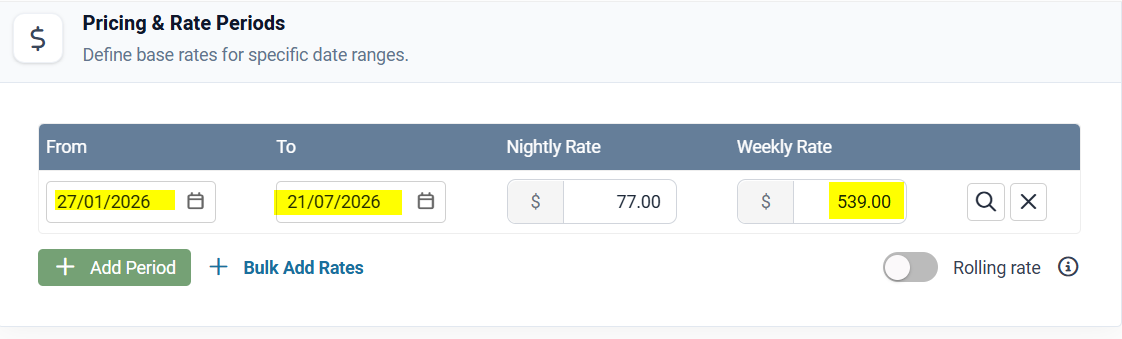
Ensure you click Update to save your changes.
Rolling Rate
By ticking the Rolling Rate checkbox, each day, the system will automatically add another day to the end of this rate period at the previous day’s price.
The “To” date calendar will appear green indicating that this is a rolling rate.
Extra Guests
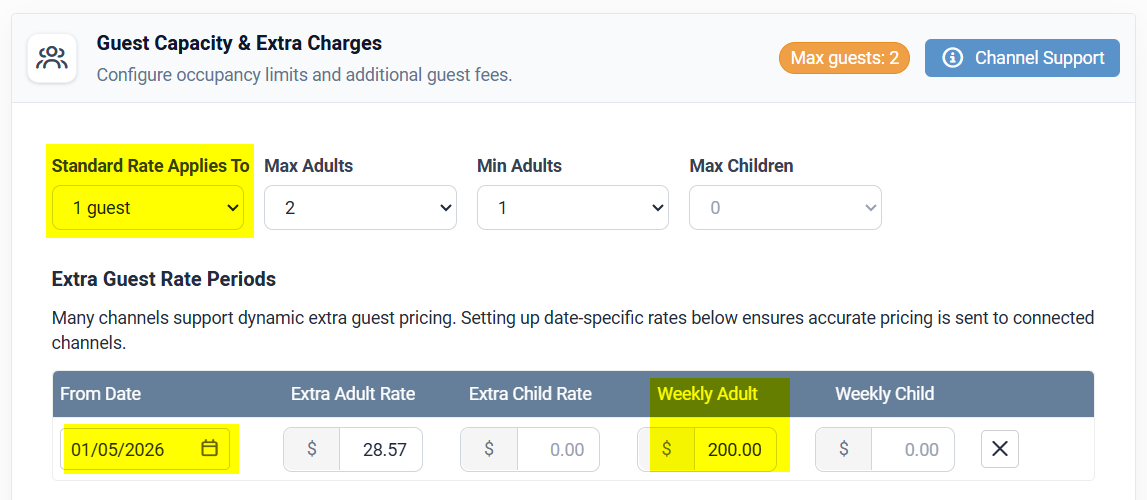
It is important to ensure that you set the "Standard room rate applies for up to" 1 guest. The UniLodge booking system will not display rates for more that 1 person. There is the option to add extra guests during the booking process.
You can set the Maximum Adults to the maximum number you allow in this room type on this rate.
Enter the From Date then the Adult (Weekly) extra guest price.
Waitlist
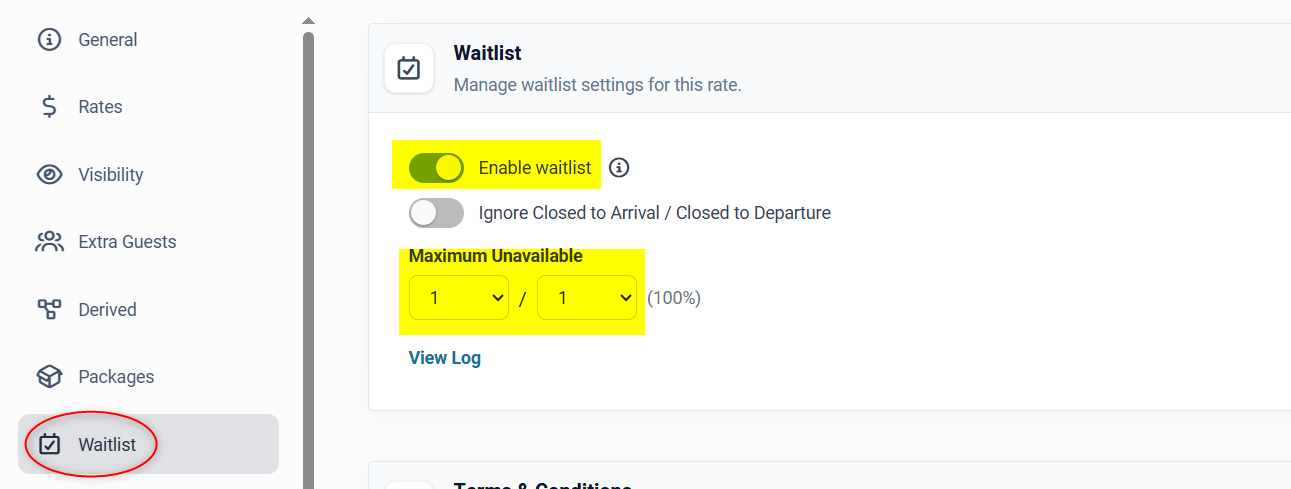
If you want your property to have Waitlist set up, ensure that the Availability page is set up as per the below screen shot. Maximum Unavailable Days must be set to 1 in 1.
If you want to turn off Waitlist simply toggle off the Enable Waitlist setting.