Tenant Application Form
This guide explains how to configure tenant application forms for your property using the Tenant Application Form Settings page.
Accessing the Settings Page
Navigate to Tenant Application Form Settings from your property admin dashboard. The page is only available to properties with the tenant application form feature enabled.
1. Form Configuration
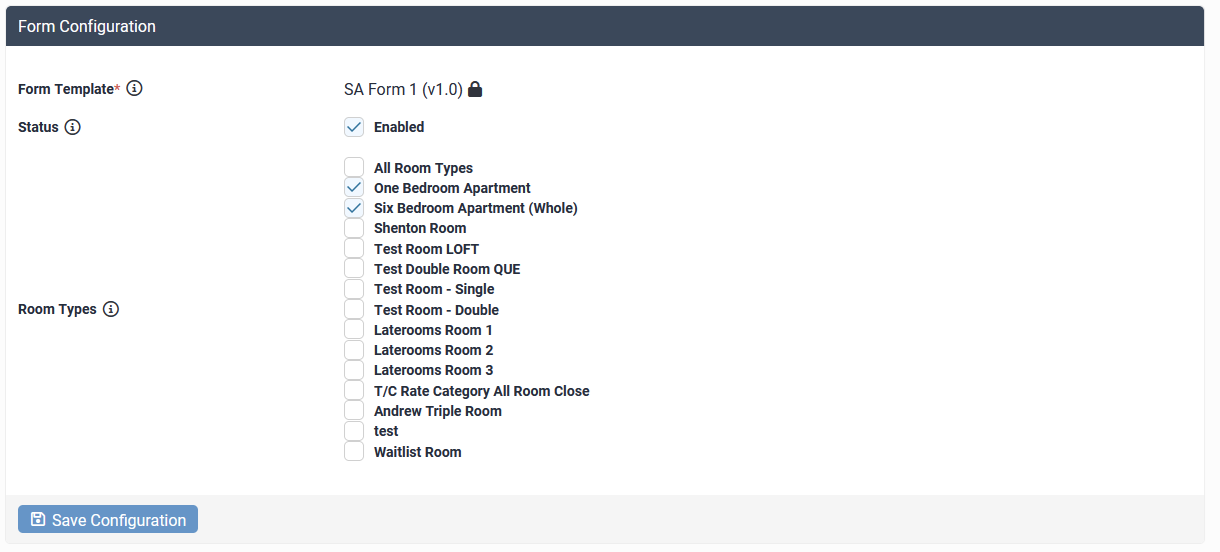
The Form Configuration panel controls which form template is used and where it applies.
Form Template
Select the tenant application form template for your property. Templates are state-specific (e.g., SA Residential Tenancy Form 1).
Important: Once a template is selected and saved, it cannot be changed. This prevents breaking existing field mappings and submitted applications.
Status
Enable or disable the tenant application form requirement for your property:
- Enabled - Guests booking applicable room types must complete the application form
- Disabled - No application form is required (default)
Room Types
Choose which room types require the tenant application form:
- All Room Types - Every room type at your property requires the form (default)
- Specific Room Types - Only selected room types require the form
This is useful if some accommodation types (e.g., short-stay rooms) don't require tenancy applications.
Saving Configuration
Click Save Configuration to save your changes. If this is a new configuration, additional panels will appear after saving.
Deleting Configuration
Click Delete Configuration to remove all form settings for your property. This action cannot be undone.
2. Bond & Address Configuration
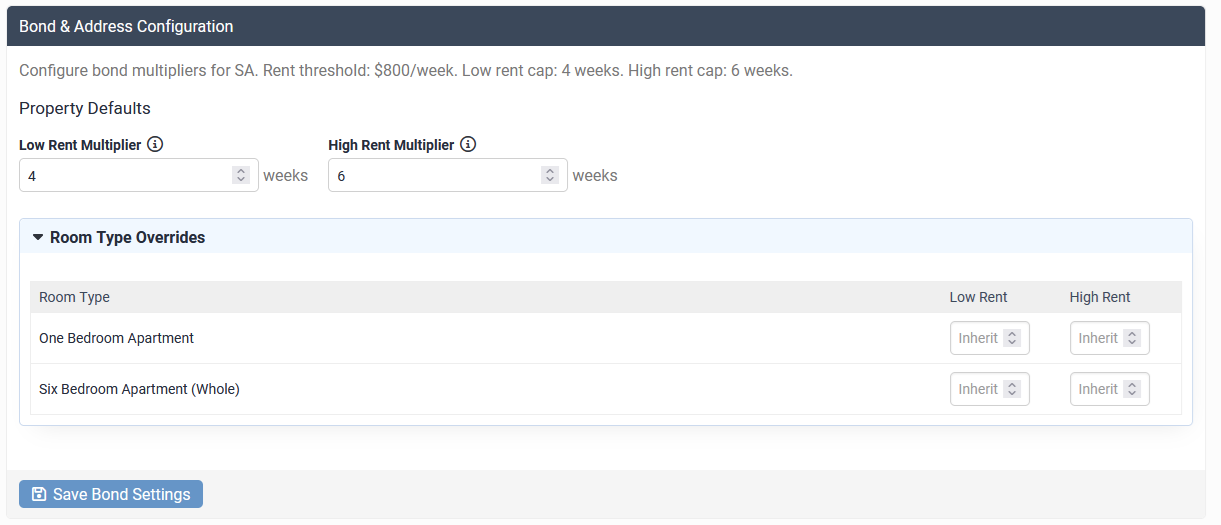
The Bond & Address Configuration panel controls bond calculations for your property.
Bond Multipliers
Bond amounts are calculated as: Weekly Rent x Multiplier
Australian states have rent thresholds that determine which multiplier applies:
| State | Threshold | Low Rent Multiplier | High Rent Multiplier |
|---|---|---|---|
| SA | $800/week | Up to 4 weeks | Up to 6 weeks |
| VIC | $900/week | Up to 4 weeks | Uncapped |
Property Defaults:
- Low Rent Multiplier - Bond multiplier for weekly rent at or below the threshold
- High Rent Multiplier - Bond multiplier for weekly rent above the threshold
The system enforces state legislative caps automatically.
Room Type Overrides
Expand Room Type Overrides to set different bond multipliers for specific room types.
Leave fields empty to inherit from property defaults. Enter a value to override for that room type.
Example use case: A premium room type may have a different bond calculation than standard rooms.
Click Save Bond Settings after making changes.
3. Sale Disclosure Unit Matching
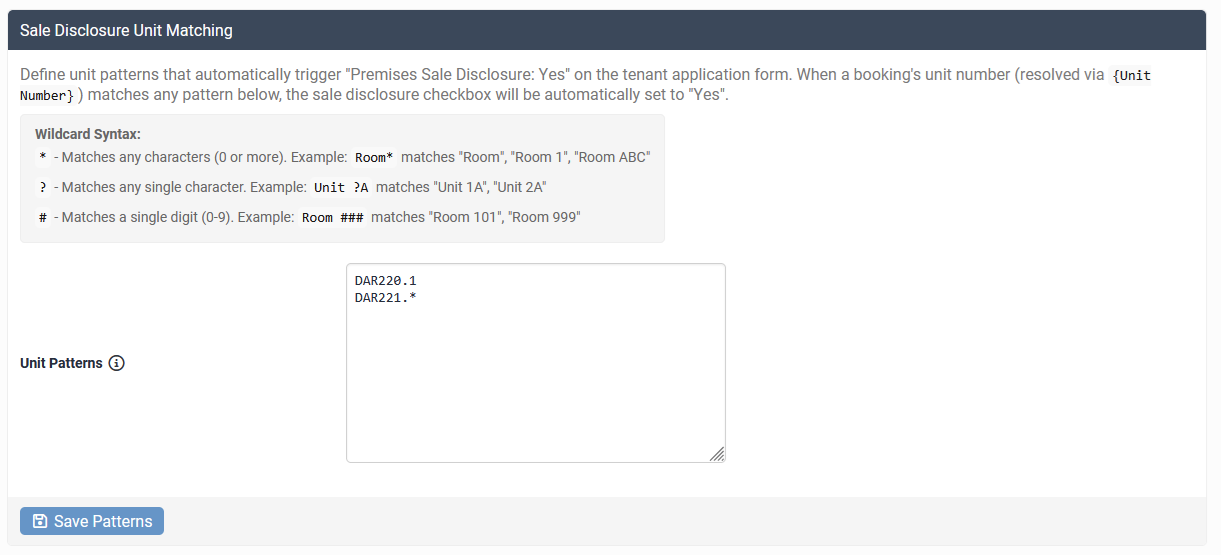
The Sale Disclosure Unit Matching panel lets you automatically trigger the sale disclosure checkbox based on unit numbers.
When to Use This
If certain units at your property are being sold or demolished, you may be legally required to disclose this to prospective tenants. This feature automates that disclosure.
Unit Patterns
Enter one pattern per line. When a booking's unit number matches any pattern, the form will automatically set "Premises Sale Disclosure: Yes".
Wildcard Syntax:
| Character | Meaning | Example |
|---|---|---|
* | Matches any characters (0 or more) | Room* matches "Room", "Room 1", "Room ABC" |
? | Matches a single character | Unit ?A matches "Unit 1A", "Unit 2A" |
# | Matches a single digit (0-9) | Room ### matches "Room 101", "Room 999" |
Examples:
Room 101
Unit *A
Apartment ###
Level 5*
All matching is case-insensitive.
Click Save Patterns after making changes.
4. Field Configuration
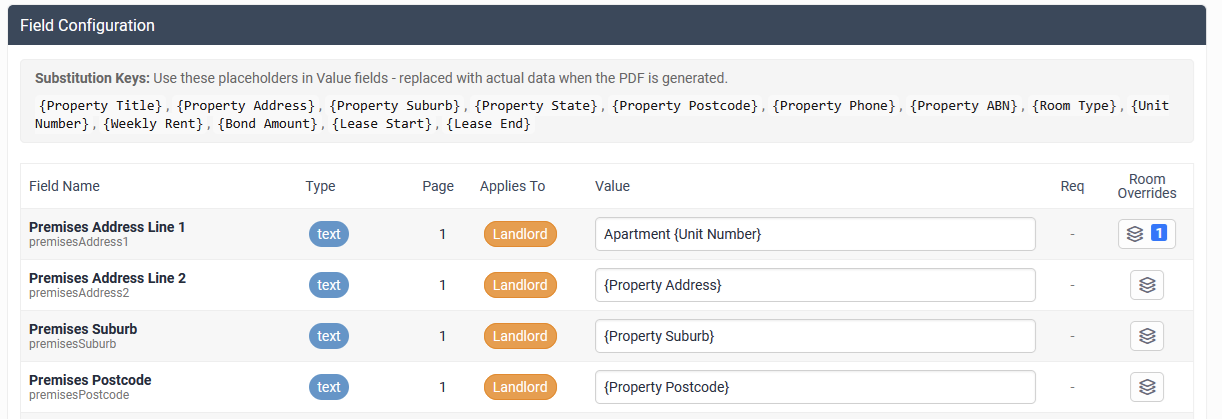
The Field Configuration panel displays all fields in the form template and lets you configure them.
Field Types
Fields are colour-coded by type:
| Type | Description |
|---|---|
| Text (blue) | Free text entry field |
| Checkbox (green) | Yes/No selection |
| Date (orange) | Date picker |
| Dropdown (purple) | Selection from options |
| Signature (red) | Digital signature capture |
| Image (teal) | Image upload field |
Applies To
Fields belong to one of two categories:
| Category | Description | Background |
|---|---|---|
| Landlord (orange) | Pre-filled by property configuration | Yellow highlight |
| Tenant (blue) | Filled by the applicant | Normal |
Landlord Fields
For Landlord fields, you configure the default value that appears on the form. These values are pre-filled when the PDF is generated.
- Checkbox fields: Select "Checked" or "Unchecked"
- Text fields: Enter the value directly, or use substitution keys (see below)
Some landlord checkbox fields are mutually exclusive. When you check one option, the system automatically unchecks others in the same group:
| Group | Options |
|---|---|
| Tenancy Type | Periodic / 12 Months / Other Fixed |
| Rent Frequency | Weekly / Fortnightly / Monthly |
| Sale Disclosure | Yes / No |
| Bond Required | Yes / No |
| Water Charges | Tenant Pays / Landlord Pays |
| Electricity | Tenant Pays / Landlord Pays |
| Gas | Tenant Pays / Landlord Pays / Not Applicable |
The following fields, if set to checked, will enable the respective supporting document upload:
| Field |
|---|
| ID: Drivers Licence |
| ID: Passport |
| ID: Birth Certificate |
| ID: Proof Of Age Card |
| ID: Other (Use Description field to add title) |
Tenant Fields
For Tenant fields, you configure whether the field is required:
- Required checkbox: Check to make the field mandatory for applicants
- Some fields are locked as required by the template and cannot be changed (email, name etc)
Auto-Configured Fields
Some fields display special notes indicating automatic behaviour:
| Note | Meaning |
|---|---|
| "Set Automatically" | Calculated from booking data (e.g., weekly rent, bond amount) |
| "Tenant to Supply" | Left blank for applicant to fill |
| "Auto-unchecked for international students" | ID fields not available to international students |
| "Auto-checked for international students" | Alternative ID fields for international students |
| "Auto-set if unit matches the Sell list" | Controlled by Sale Disclosure patterns |
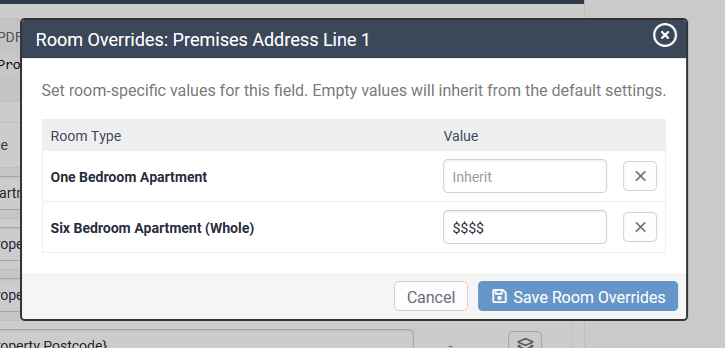
Room Overrides
Click the layers icon to set room-specific values for landlord fields. This allows different properties details per room type.
A badge shows how many room types have overrides configured.
Click Save Field Settings after making changes.
5. Substitution Keys
Use these placeholders in text fields - they're replaced with actual data when the PDF is generated.
| Key | Description | Example |
|---|---|---|
{Property Title} | Property name | "UniLodge Adelaide" |
{Property Address} | Full property address | "123 Main St" |
{Property Suburb} | Property suburb | "Adelaide" |
{Property State} | Property state | "SA" |
{Property Postcode} | Property postcode | "5000" |
{Property Phone} | Property phone number | "08 1234 5678" |
{Property ABN} | Property ABN | "12 345 678 901" |
{Room Type} | Selected room type name | "Studio Apartment" |
{Unit Number} | Assigned unit/room number | "Unit 405" |
{Weekly Rent} | Weekly rent amount | "450.00" |
{Bond Amount} | Calculated bond amount | "1,800.00" |
{Lease Start} | Lease start date | "15/02/2026" |
{Lease End} | Lease end date | "14/02/2027" |
Example usage:
For the Premises Address field, you might enter:
{Unit Number}, {Property Address}
This would output: "Unit 405, 123 Main St"
6. PDF Preview
The Application Form Preview panel shows a live preview of your configured form.
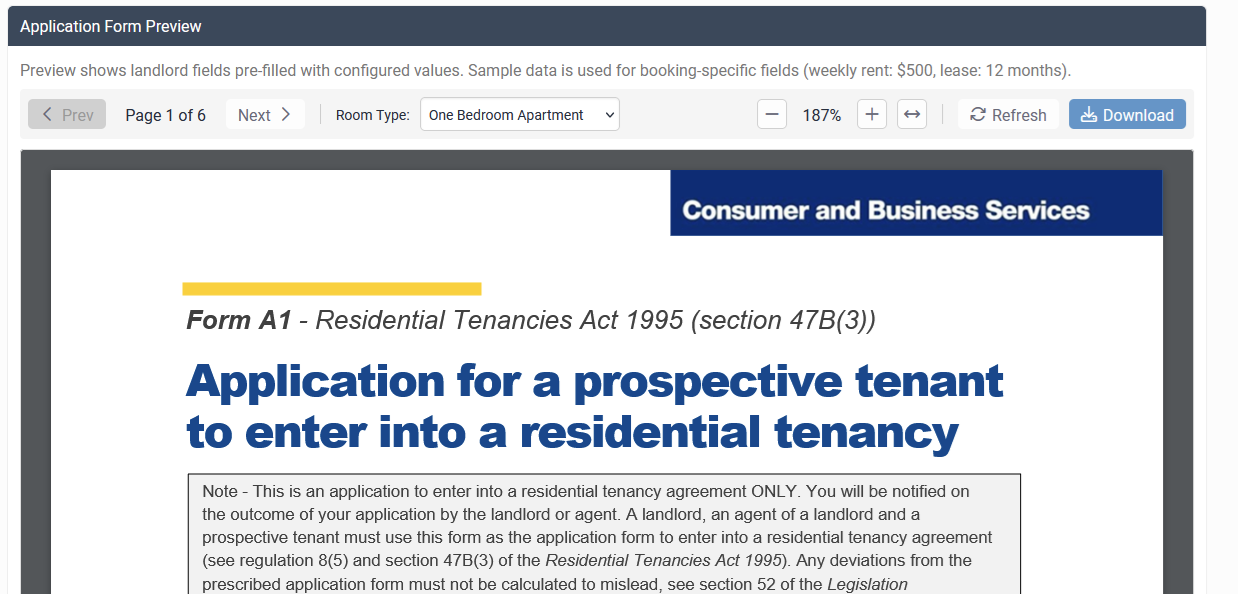
Preview Controls
| Control | Function |
|---|---|
| Prev/Next | Navigate between pages |
| Room Type | Preview with different room type values |
| Zoom +/- | Adjust zoom level |
| Fit to Width | Auto-fit preview to panel width |
| Refresh | Reload preview after making changes |
| Download | Download the PDF with current settings |
The preview uses sample data:
- Weekly rent: $500
- Lease duration: 12 months
This helps you verify that all landlord fields are correctly configured before enabling the form. The tenant fields are not interactive in this version, you will need to navigate to the end user application form for this.
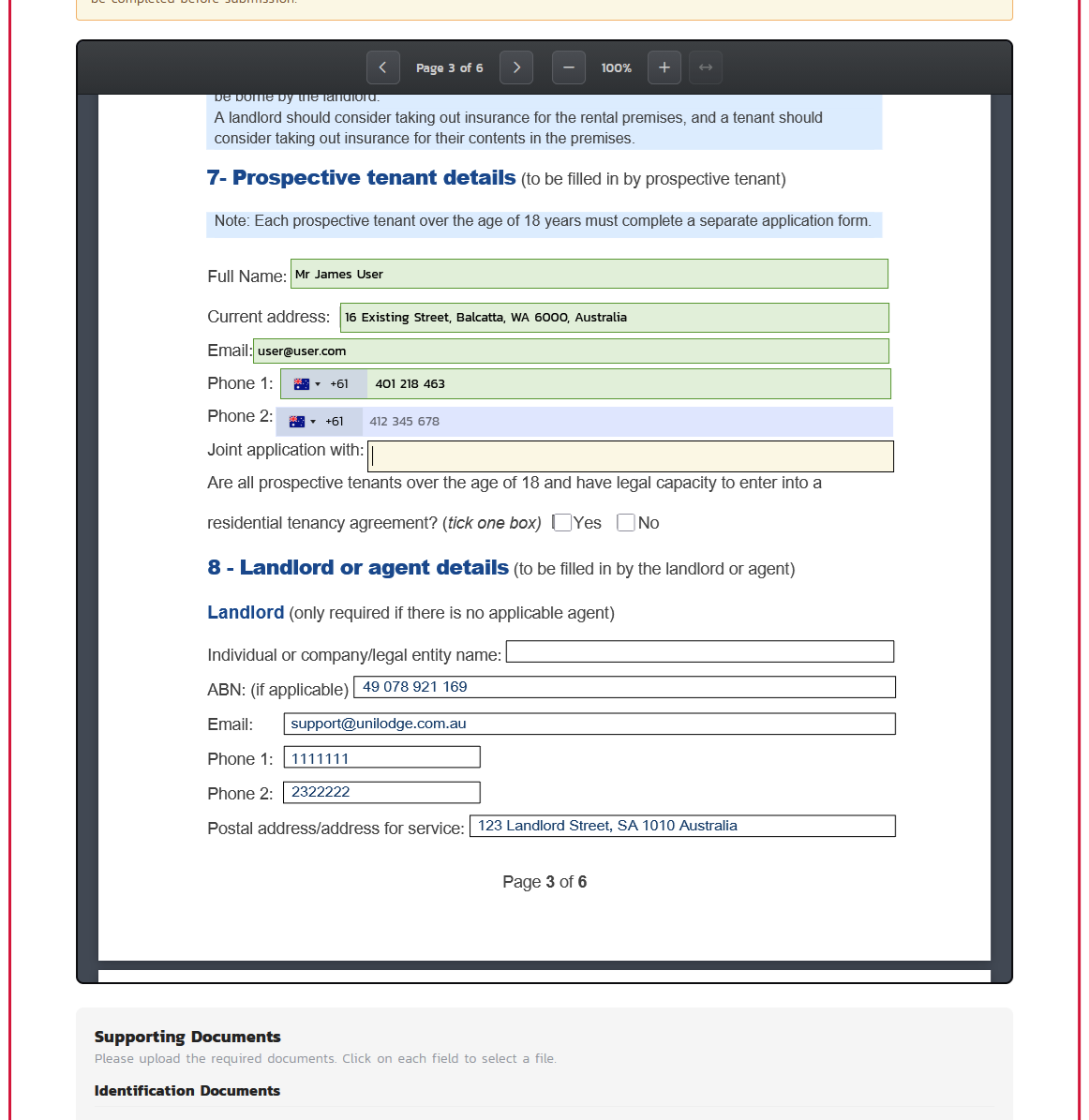
End User Application Form
The end user will be presented with the full pdf allowing them to set the fields as set out in the configuration.\
Workflow Summary
- Select a form template and save configuration
- Configure bond multipliers for your property
- Set sale disclosure patterns if applicable
- Configure field values for landlord fields
- Preview the PDF to verify configuration
- Enable the form when ready
After enabling, guests booking applicable room types will be required to complete the tenant application form during the booking process.
- The completed & signed PDF will be attached to both the guest and property application emails.
- The completed form information, including pdf will be uploaded to the properties PMS system.
- StarRez (immediate)
- Zoho (immediate)
- Console (On completion of payment - Offer needs to be sent to applicant)
- If the Room type is not enabled for tenant application form, it will use the Levart standard (non pdf) application process.
Troubleshooting
"No active form templates available"
Contact Levart support to enable tenant application forms for your state.
Form not appearing for bookings
Check that:
- The form status is set to "Enabled"
- The room type being booked is included in your room type selection
- The property has tenant application forms enabled in site settings
Bond amount incorrect
Review your bond multiplier settings and ensure they comply with your state's legislative caps.
Substitution keys not working
Ensure you're using the exact key format with curly braces: {Property Title} not {property title} or Property Title.