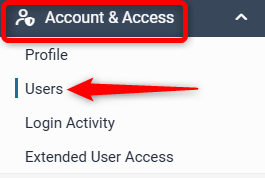
Users
Overview
Users allows you to set up logins for all staff members. Levart strongly recommends that each staff member be given their own personalised login for the security of the system.
Users and Contacts
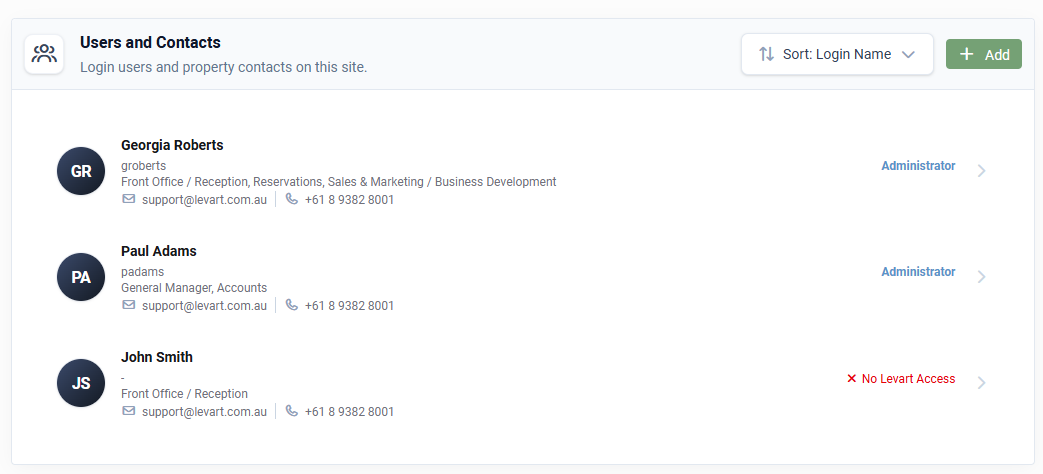
Any existing users and contacts will show in the list
User: someone that can log in to Levart
Contact: someone that is only listed to show contact details and can't log in (marked as "no Levart access")
Add New User
Click +Add to create a new user

Ensure all required fields are filled out and set the access level
| Administrator | Users can view and edit all pages of the Levart Admin site. |
| Room Administrator | Users can view and edit inventory in the Calendar only. |
| Calendar Edit Inventory & Read Rates | Users can view and edit inventory in the Calendar only. The Rate Control section of the Calendar is also visible, however changes will not be saved. |
| Calendar Read Access Only | Allows users to view the Calendar only. The Inventory Control and Rate Control sections are both visible, however changes will not be saved. |
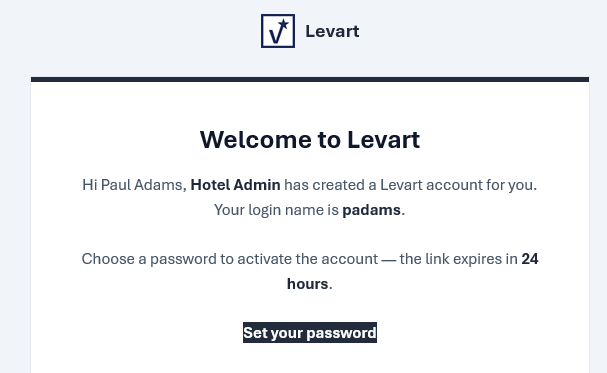
Click Create User and they will receieve an email to set their password
If someone is a contact only and shouldn't have access to Levart back end, unselect the "has Levart access" checkbox

Edit Existing Users
You will see a list of all existing users and contacts. Click on an user to edit their details, delete them or trigger a password reset email.
Click Reset Password to trigger a password reset email to be sent to the user's email address
To delete the user click Delete from this site
If the user has access to multiple sites, an extra button to Delete from all sites will show. You can only select this if you also have access to all the same sites as this user.
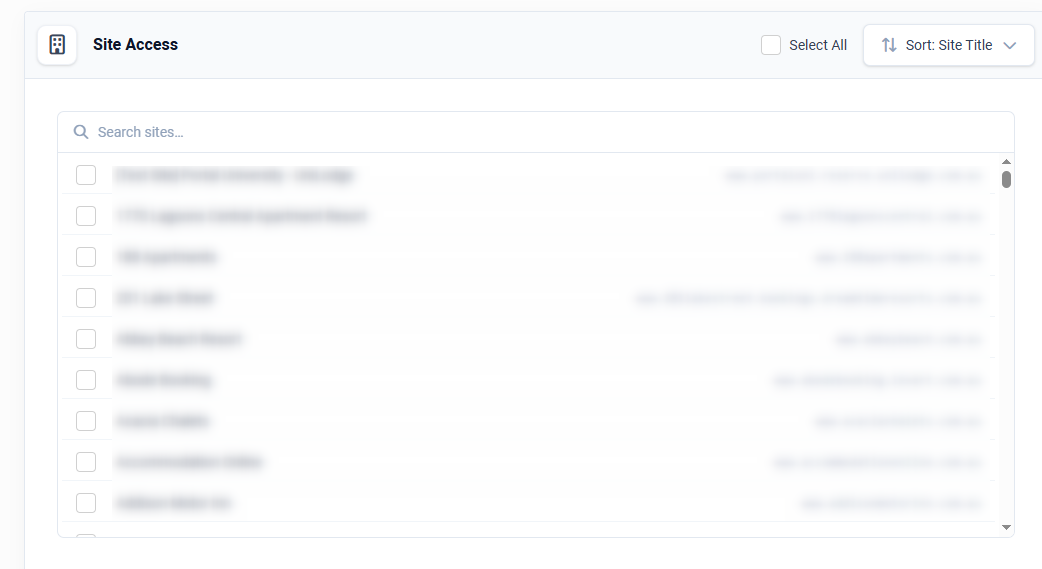
Site Access
If you have access to more than one site, you can assign or un-assign a user from accessing those sites. If a user has access to multiple sites, they can use the same username and password for all sites.
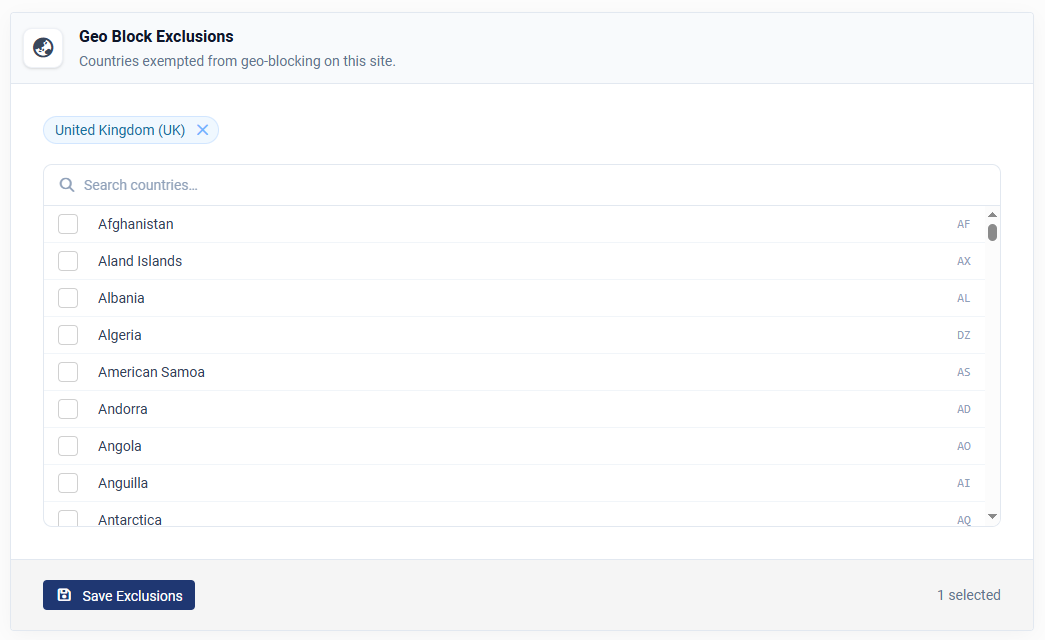
Geo Block Exclusions
If you are travelling to another country, you may get geo-blocked from logging in. To exclude countries from this block select them in the Geo Block Exclusions