Booking.com Special Offers
You can create and manage special offers on Levart which will be linked directly to Booking.com. To activate this please first contact support@levart.com.au
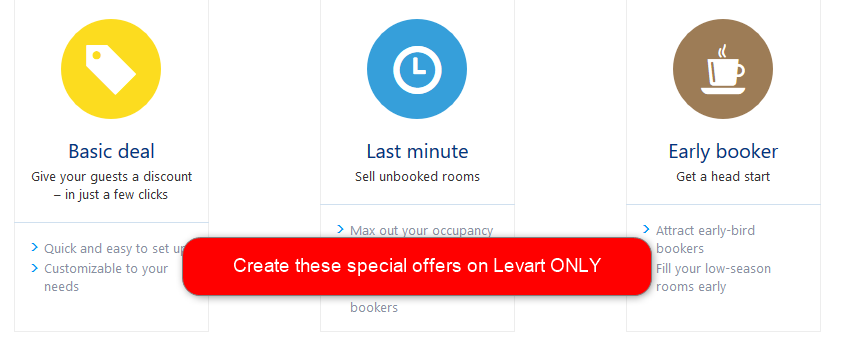
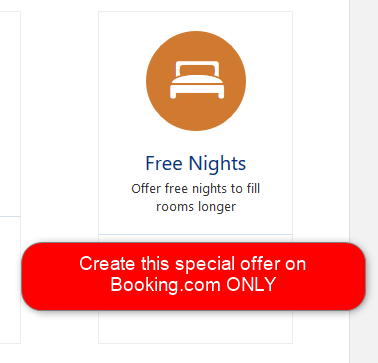
Booking.com have the option to create 4 different special offers: Basic Deal, Last Minute, Early Booker and Free Nights.
Basic Deal, Last Minute and Early Booker are to be created on Levart.
Free Nights is to be created on Booking.com.
If you already have specials created in Booking.com, they will be imported into Levart. You must not touch the specials in Booking.com once they have been imported into Levart. Once imported you must manage them in Levart
To create a new special offer for Booking.com go to Management > Special Offers

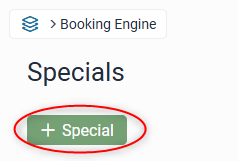
Click + Special to create a new special
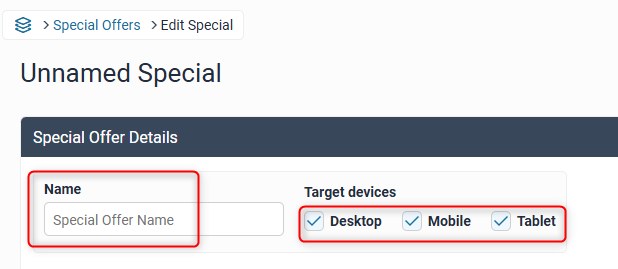
Type in the name of your special offer (if you do not type in a name of your choice the system will create a default name from the settings you use) and select the target devices (leave all selected if it is not a mobile and/or tablet only special):
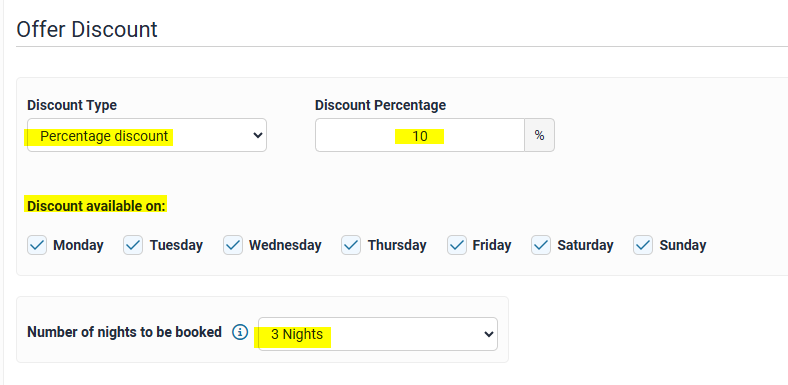
Discount Type
In the Special Offer drop down select Percentage discount
Enter the percentage discount you would like applied when the specified number of nights has been selected for a booking in the Discount (% discount) textbox. This percentage discount will apply to all nights of a booking
Select the days of the week with the tick boxes, if the special is only applicable to certain days
Select the number of nights required to obtain this discount from the Number of nights booked drop down.
Dates and Times
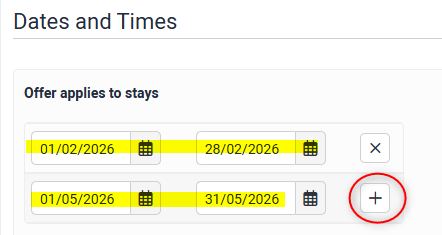
Offer Applies to Stays
To restrict a Special Offer period to a certain stay window, select dates from the date picker.
You can add multiple periods by clicking the + next to the existing date line.
You can remove date periods by clicking the X next to the date line.
Booking Time Restriction
Use the dropdown to nominate by day when a Special Offer can be booked on.
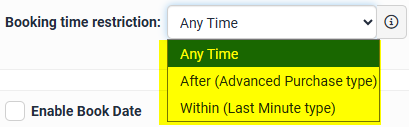
Anytime - use this if you wish for the special to be available anytime as long as the rate periods and Special Offer Date restrictions are met.
After (advanced purchase type) - Nominate a number of days in advance (from check in) that the special offer will have to be booked on in order to receive the discount. As this field is by day - it is moving, so each day the un-bookable period will roll over, and bookings will always have to be made the nominated number of days in advance in order to qualify for the Special Offer discount.
Within (last minute type) - Guests must book within the selected number of days before check in to receive the discount. As this field is by day - it is moving, so each day the bookable period will roll over, and bookings will always have to be made within the nominated number of days in order to qualify for the Special Offer discount.
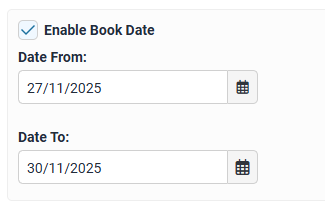
Enable Book Date
Enable this if there is a restricted book date for the special offers. This restricts the dates the special will be sold, not the dates of stay (e.g. can be used for a flash sale such as Black Friday).
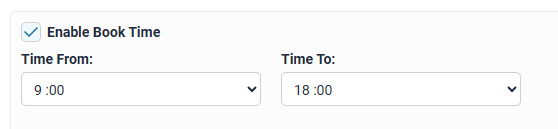
Enable Book Time
To be used in conjunction with Book Dates - this allows you to select a specific window of time within the book dates that the special will be active. this does not need to be activated if you would like the booking time to be all day (i.e. 0:00 - 23:59).
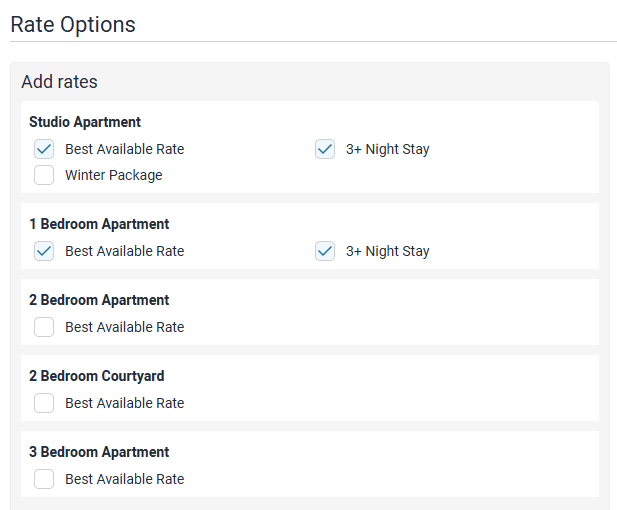
Rate Options
Tick all the rates you would like the special to apply to
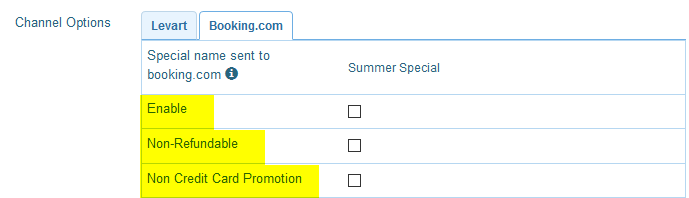
Click on the Booking.com tab where you will see the name of your special - this is what you will see in the Booking.com extranet. This is not what is displayed on the front end of the Booking.com website.

The name is limited to 20 characters - anything longer will be cut off at 20.

Select the boxes that are applicable:
Enable - check this box if you wish to push the special offer across to Booking.com
Non-Refundable - check this box if you wish to attach non refundable terms and conditions to the offer on Booking.com
Non Credit Card Promotion - check this box if you do not want the special to require a credit card - no payment details will be taken for this booking
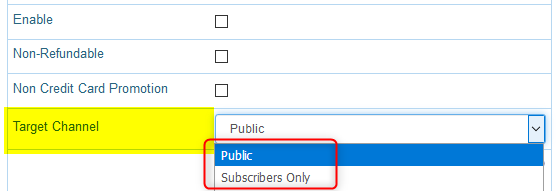
Select your Target Channel
This allows the special offer to apply to a specific subset of guests
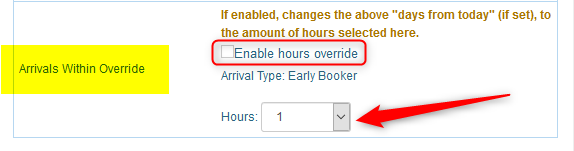
Check the Enable hours override box if you wish to override the Last Minute arrival period from days to hours.
Guests can book this promotion within XX hours of their check-in day.
Once you have completed the set up of your special offer click Submit to save. The special offer will sync across to Booking.com in 5 minutes so long as you have checked the Enable button as shown above.