Room Types
Overview
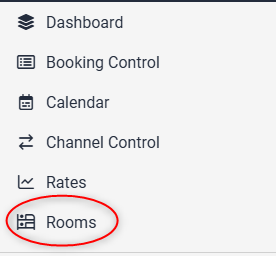
Click on Rooms in the menu
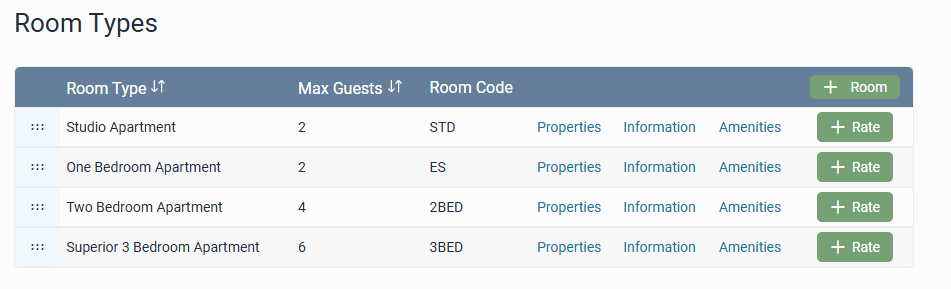
You will see a list of all the room types, where you can edit the:
- Properties
- Information
- Amenities
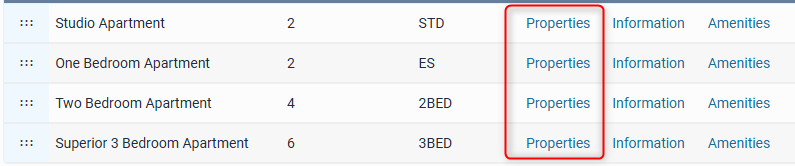
Room Properties
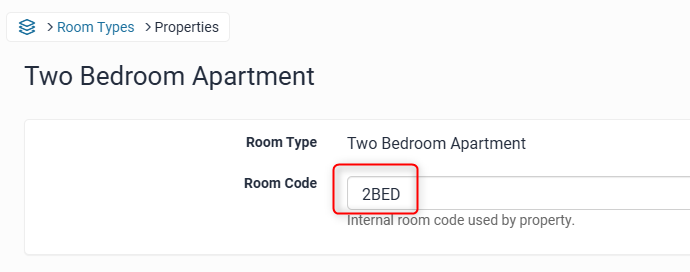
Change the Room Code
This would be the same code as you use in the front office system, or internally at the property. The guests do not see this code
Set the number of rooms
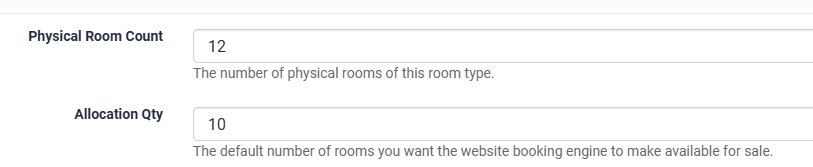
Physical Room Count: enter the true number of physical rooms you have of this room count. This is used for counting occupancy for certain features such as Auto Rate Management.
Allocation Qty: Set the default number to what you want the website booking engine to make available for sale (this can be overridden in your calendar for specific dates, or WILL be overridden if you use a PMS)
Set allocation alerts
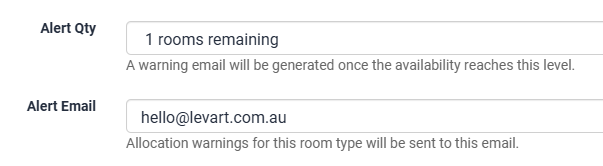
Your property will receive an email when you are down to your last rooms. E.g. You have allocated 10 rooms and have an Alert Qty of 1, you will obtain an email alert message when the number of rooms remaining equals 1. The alert will be sent to the email entered into the "alert email" field.
Hurry Qty
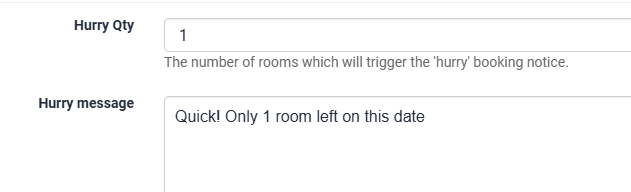
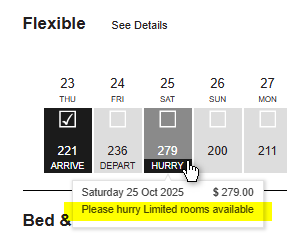
Set the number of rooms remaining to trigger a "hurry" message on the booking page. The additional text entered into the Hurry Message will show when the user hovers over that date
Edit your bedding configuration options for each room type.
This will only provide your guests with an alternative bedding configuration option when they book. To change the actual number of beds in each room and your maximum guests in each room, you must do this in Site Information > Rooms
Click “+ bedding option”
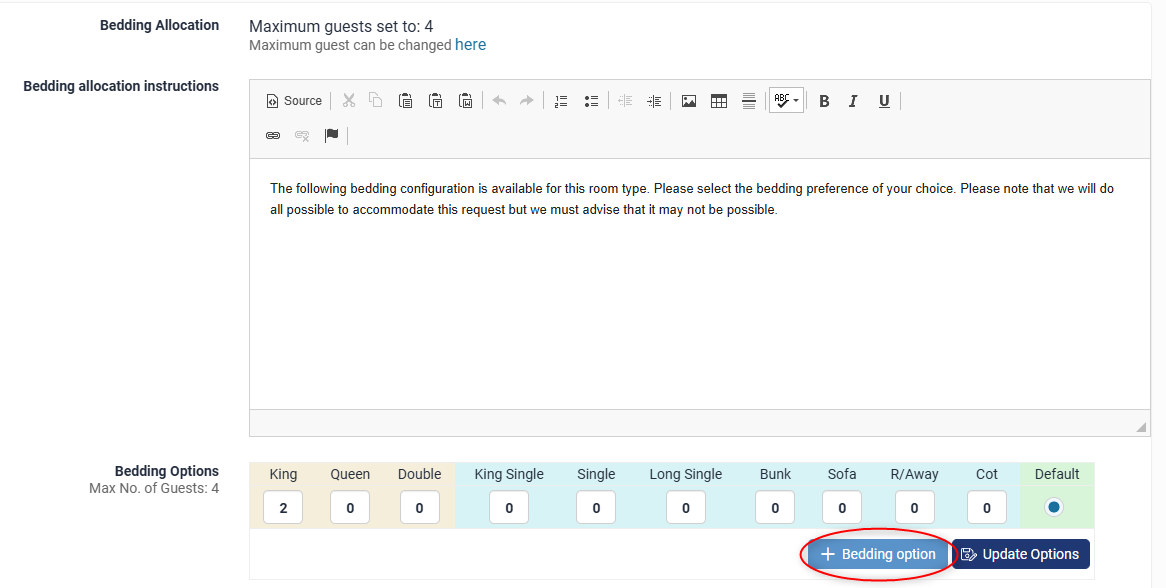
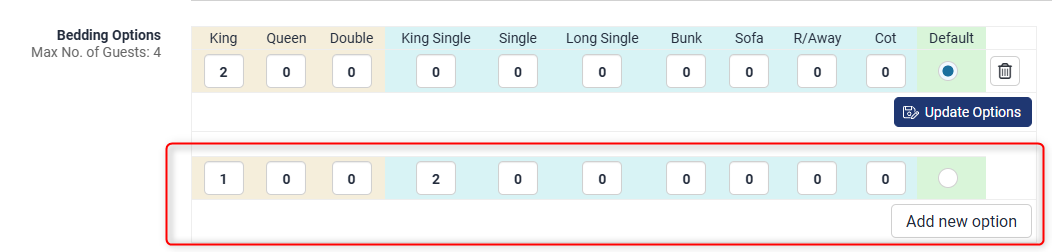
Fill in the bedding option then click "Add New Option"
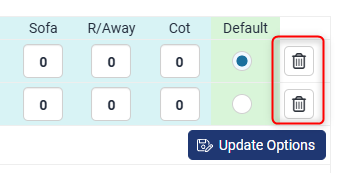
To delete a bedding option:
Click on the trash can next to the bedding option you would like to delete. You will need to ensure the configuration is not the default.
Edit the bedding allocation instructions: (For Booking Engine Clients Only)
This text will be shown as the during the booking phase to the guest if you have more than one bedding option and serves as instructions to guests . You could also state that bedding allocation requests cannot be guaranteed, etc.

Add a Booking Confirmation message:
The confirmation message box allows you to place a message that will appear on the confirmation email to the guest. This message could be used to advise the guest on procedures checking in when arriving after the reception is closed.

Once you are satisfied with the information on this page, click on “Submit”.
Room Information
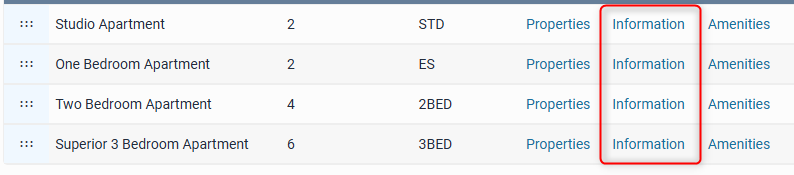
This takes you to the room information where you can edit items such as:
- Room name
- Description
- Images
- Maximum guests
To see a full overview on how to edit these details, click HERE
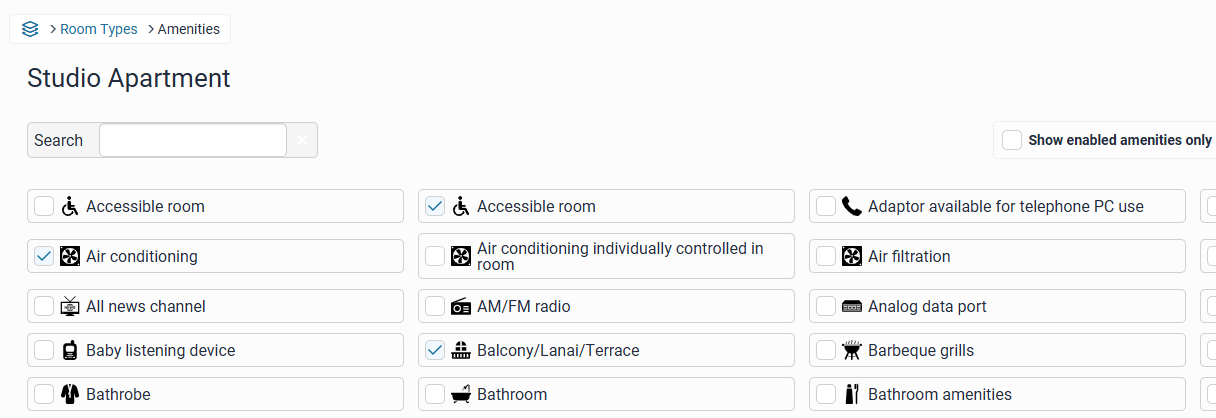
Amenities

Tick all the amenities that are applicable to the room type and save. The amenity names and icons will show on the booking search page.
If you are unsure of how to complete a particular section or are experiencing any difficulties with the setup, please feel free to contact Levart Support on 08 9382 8001 or at support@levart.com.au