Booking Process Options
Overview
Booking Process Options allows the property to manage settings for their Booking Engine.
This includes tax settings, the fields that guests are required to enter, as well as the booking cancellation message, and extra text for marketing, Trip Advisor Review Express, and membership fields (if the property wishes to add them).

General Options
Payment Summary Options
If the property has mostly long stay bookings, they may wish to remove the day-by-day rate breakdown on the Review page of the Booking Engine, as well as the email confirmation to the guest and property.
Tick the Disable Rate Breakdown checkbox to remove from the Review page and confirmation emails.
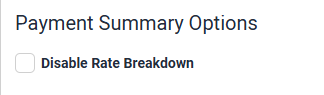
Click Update to save changes.
Tax Options
This section allows the property to control the display, level, name and itemisation of tax throughout the booking process.
In the Rates Include Tax drop down, select whether the uploaded rates have tax or not.
Rates Including Tax
By default, rates including tax have tax set at 10% with tax type displaying as GST and no Itemised Summary.
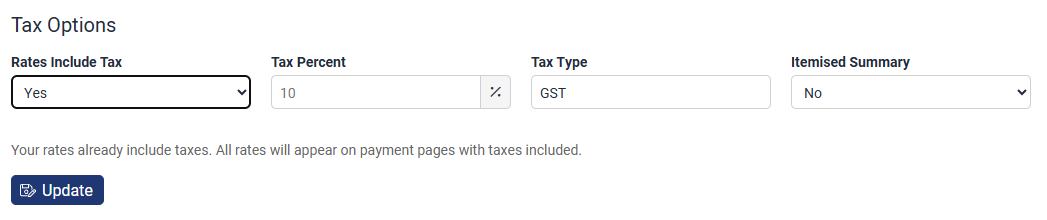
The tax percent and type name can be changed by using the Tax Percent and Tax Type textboxes.
An Itemised Summary can be shown if desired. This will itemise the amount of tax paid by the guest in the Payment Summary.
Rates Excluding Tax
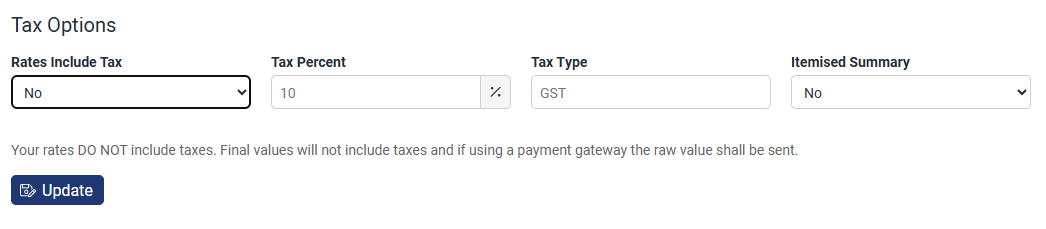
If a rate is entered pre-tax, select No from the Rates Include Tax drop down. The guest will not be notified of tax.
If using a payment gateway, only the net value will be sent.
If the property wishes for tax to be calculated and added on the Review and Payment pages, enter Tax Percent, Tax Type and select Yes from the Itemised Summary drop down menu.
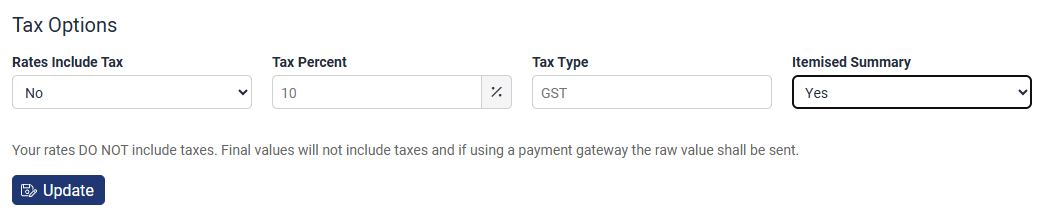
This will ensure tax is added on to the rate guests select on the Booking Grid.
Payment Page Options

Payment Page Fields
This table allows the property to select what fields are displayed and what fields are required in order for a guest to make a booking.
Simply tick or untick fields to have them added or removed from the Payment Page of the Booking Engine.
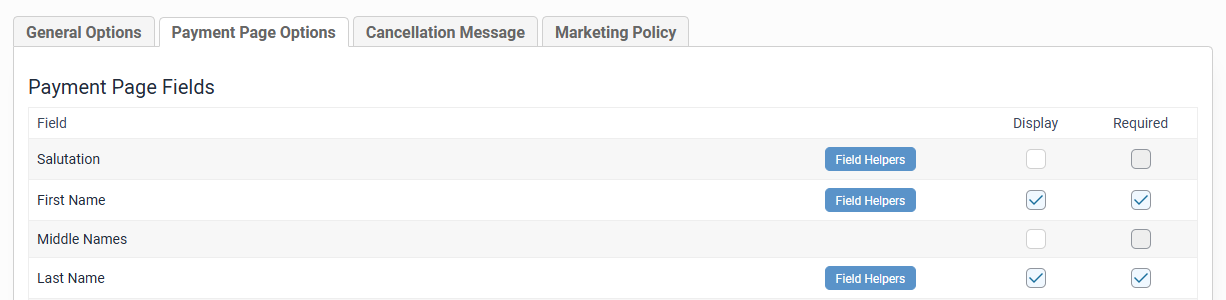
Payment page:
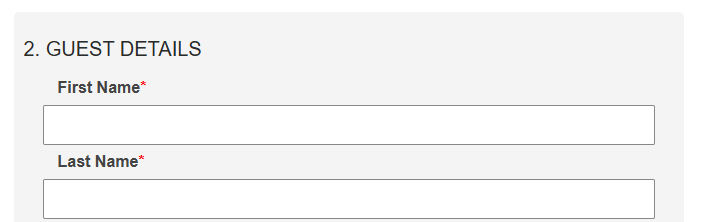
First Name and Last Name are required fields denoted with the red *.
Click Update below the table to save changes.
Payment
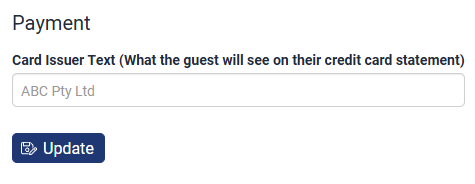
The text a guest will see on their credit card statement, can be specified in the Card Issuer Text field. This will be displayed on the Payment Page, onscreen confirmation and the confirmation email to both guest and property.
Cancellation Message

Booking Cancellation Message
Properties are able to customise the Booking Cancellation Message that is sent to guests who cancel their Levart bookings.
This is the default message:
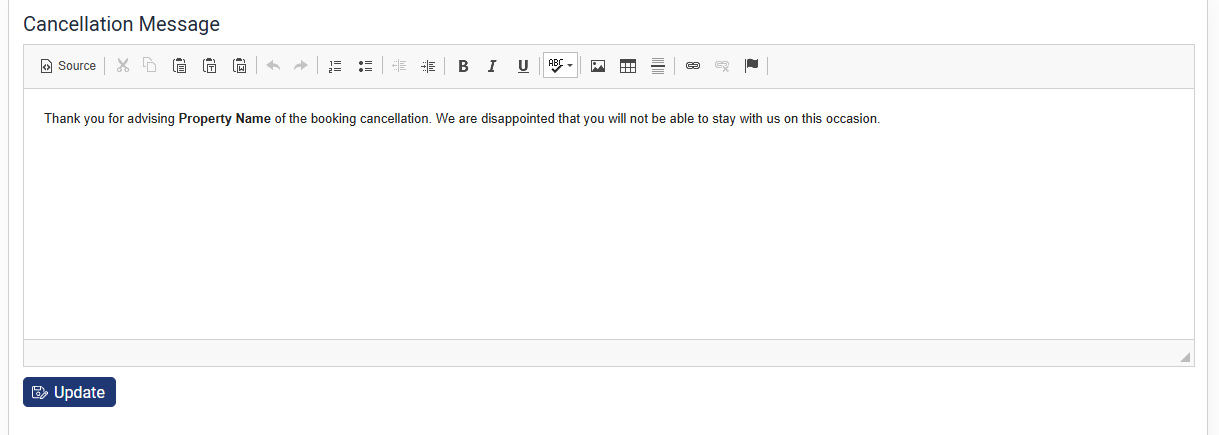
Click Update at the bottom of the textbox to save changes.
Marketing Policy

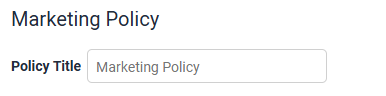
Marketing Policy Title
This tab controls the Marketing Policy section of the Booking Engine. The section title that appears on the Payment Page will not be changed by entering text in the Marketing Policy Title field and clicking Update. This title is only for the property to view.
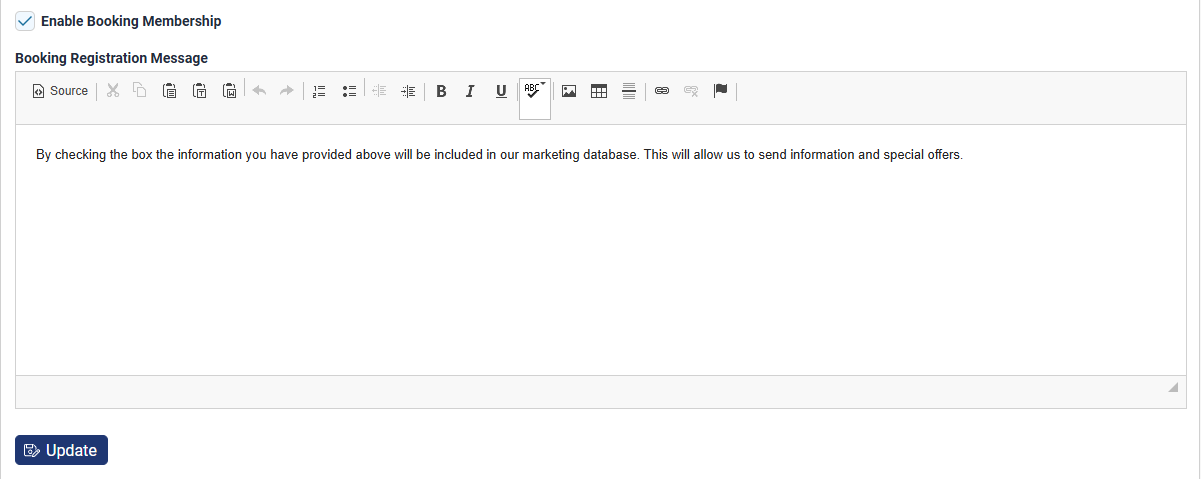
If the property would like to offer the option for guests to be added to the Members database in Levart, tick the Enable Booking Membership checkbox. The text can be customised or left as the default text:
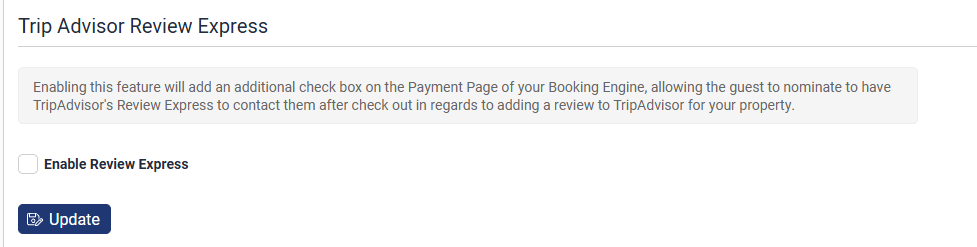
TripAdvisor Review Express
The Enable Review Express checkbox will allow TripAdvisor to automatically contact guests after checkout, if they opt-in via a checkbox on the Payment Page of the Booking Engine.
Click Update to save changes.
An enabled TripAdvisor interface is required, and Review Express functionality must be enabled on TripAdvisor in order to enable this feature in Levart.
For further assistance, contact support@levart.com.au