Conferences
Conferences
Overview
This section details the information about Conferences and events that can be held at your property.
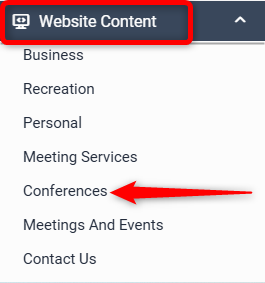
Go to Website Content > Conferences
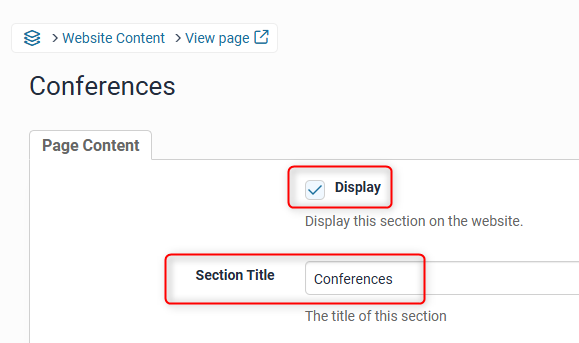
Page Setup
Tick the Display box (This will ensure the page will display on your website).
The section title allows you to change the title of the Conference page, or leave it as is.
In the Custom URL textbox, if you wish you can enter text that you would like the URL for this page to be (after the domain), or click AUTO for the system to automatically generate a relevant URL

When you open that page on your live site, the updated URL will appear in the address bar, page links, link hovers and breadcrumbs.
Fill in the Conferences Description with a paragraph describing the how your property can best cater for them.

Header Slideshow
The Header Slideshow are the large image/s that display at the top of your website.
Use the dropdown to:
- Select an already created gallery
- Create a new gallery
- Apply a single media file
- Use the default gallery (what is assigned to the Home page)
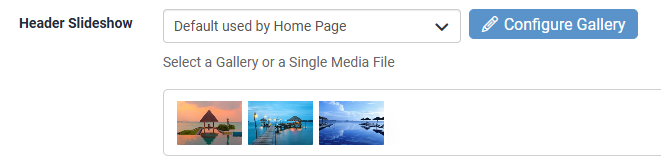
A gallery needs to be created for multiple images. If you only require one image in the header, select "Single Media File"
Click on ADD A NEW DOCUMENT to add a document to the site.

Adding a Conference Room or Request for information page:
You can add as many conference rooms as there are in the property.
Select ‘Add a new Conference Room’ and complete the details for each conference room.

Each sub page is set up similarly to the parent page, with a Section Title, Full Description, Custom URL, and uploading images.
Add one image per sub-page by selecting a single media image in the Gallery dropdown
This will be your hero image, which displays on the parent page
Once you have saved your Conferences Page (Parent Page), you will have options to create Conference Room or Request for information pages.
Each Conference room or Request for information page has several sections fields that can be filled to give a fuller picture or descriptive of the conference room or request for information page.
Click Update Page to save changes