Client Profiles
Overview
Client Profiles allow the property to set negotiated or special rates for a specific client or group of clients. These rates can then be booked on the property website using a private username and password. The discounts can be applied to existing rates through the Client Profile. Alternatively, the property can create special client rates and link them to this profile, which means the client cannot access the special rates unless they are given the relevant login details.
Manage Client Profiles
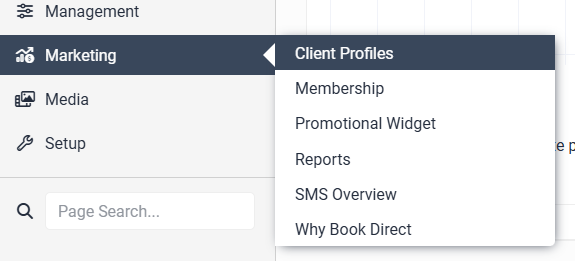
To create a Client Profile, go to Marketing → Client Profiles:
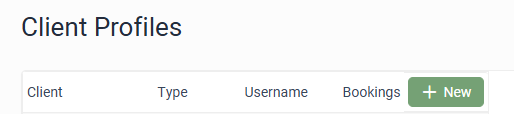
This is where to view and edit existing, and create new Client Profiles. To add a new Client Profile, click on the + New button:
The Client Profile setup is divided into a number of tabs. Complete one tab, then click on the Update button to save before moving on to the next tab.
Profile
Add a Client Name and Username, plus fill out any relevant details of the organisation that will be able to book these offers:

NOTE: Once a client login name has been created, it cannot be changed
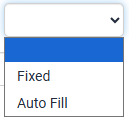
Select Fixed from the dropdown next to a field to have that text automatically entered. This means the text cannot be edited by that Client on the Payment Page of the booking process.
Select Auto Fill from the dropdown next to a field to have that text automatically entered,. However, in this case the text can be edited by that Client on the Payment Page of the booking process.
To have the guest complete a field themselves on the Payment Page – leave this dropdown unchanged:
The text in the Welcome Message textbox will be displayed to the guest once they log in to a Client Profile:

Enter a specific password for this Client Profile in the New Password textbox, or click Generate for a password to be automatically generated. A confirmation of this Client Name and Password will then be emailed to the Profile Creator Email address entered at the top of the Profile page:


To make it so that guests can complete a booking without providing credit card details, check either Require Account Number on the Payment Page or Require Purchase Order Number on the Payment Page or both.
Note: credit card fields will remain on the Payment Page, however credit card details will not be required to make a booking if either of these are checked
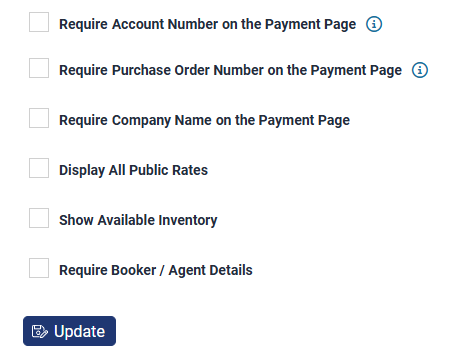
Click Update at the bottom of the page to save the Client Profile.
Once the Client Profile is saved, an email will be sent to the email address entered in the Profile Creator Email field. This will contain the login details to pass on to the client/s.
At the bottom of the email, there will be a URL that will automatically log guests in to this Client Profile when clicked. Allowing them to make a booking without having to log in first.
Rates
Once a Client Profile has been created, the property will need to link rates so the CP can be used to make bookings. Once logged in to a Client Profile, guests will only be able to make bookings on rates that are linked to that Client Profile.

Restrict Dates of Stay
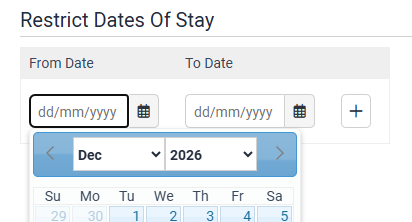
If the property would like to link an existing year round rate, then this section can be used to restrict the dates that guests booking on this Client Profile can stay. As an example, guests can only book their stay during a special event.
To apply this, enter dates in the From Date and To Date boxes:
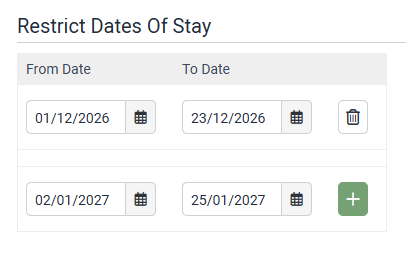
It's possible to add multiple stay periods by clicking the + button and existing stay periods can be deleted by clicking the trash can button:
Assign Rates
Click Show All in the relevant room type to display all of the rates for that room type:

Click the link icon next to the rates the property would like to associate with this Client Profile. There is no limit to the number of rates that can be linked:

An (Addend) dollar value or (Multiplier) percentage, can be applied to manipulate this rate. The Addend or Multiplier will only apply to bookings made on this rate once a guest is logged in to this specific Client Profile:
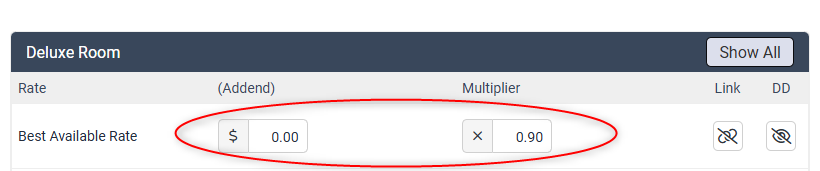
If the property would like the linked rate to be the same as the price set in the Rate Types page – leave the Addend and Multiplier boxes unchanged.
To unlink a rate, click the Link icon again next to that rate.
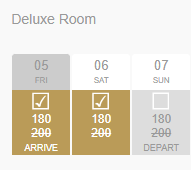
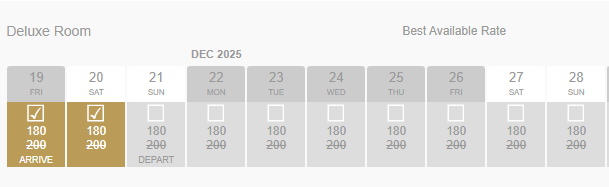
If the DD (Display Discount) Eye icon is clicked to remove the strikethrough, then the original rate will be shown on the booking grid as crossed out, with the discounted rate displayed. For example:
Scroll to the bottom of the page and click Update to save all changes.
Value Added Items

With the Levart Value Added Item functionality, specific Value Added Items can be assigned to specific clients. This will allow guests logged in to a Client Profile the ability to purchase optional extras. Contact support@levart.com.au to enable this feature (for a fee).
Tick the Display box next to any Value Added Items that are to be offered to this Client Profile:

Use the Move icon to rearrange the order these Value Added Items display to this Client Profile:
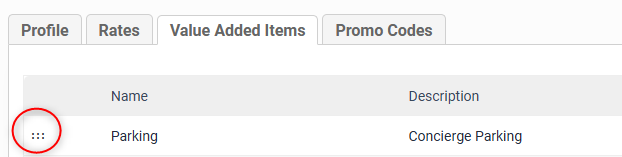
Click Update at the bottom of the page to save changes.
Note: items with CP next to the Display checkbox have been set to display to Client Profiles only.
Promo Codes

The Levart Promo Code functionality gives properties the ability to allow guests to view rates assigned to a specific Client Profile, simply by entering that promotional code. Promo Codes are set up with a date limit, which means the code is only valid to make a booking during the set dates.
Enter the text that you wish to be the Promo Code in the Code textbox. You can create multiple Promo Codes for the same Client Profile.
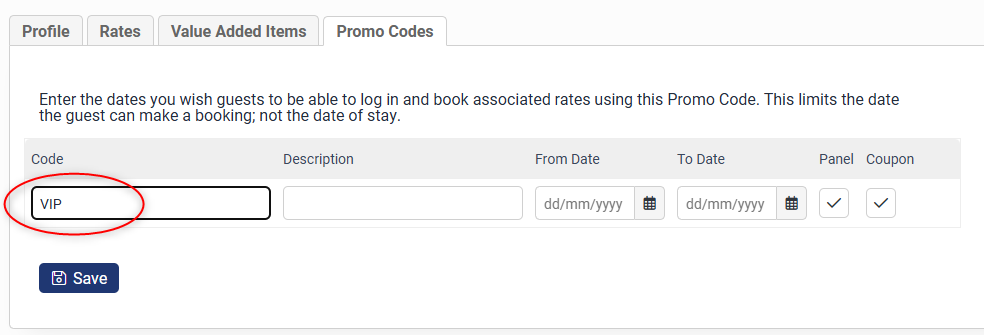
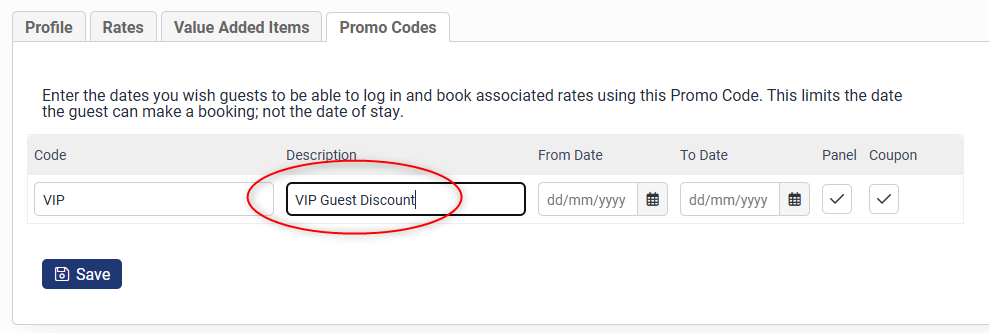
Enter a brief description in the Description textbox. This is for the property only – guests cannot see this field:
Enter the dates that guests are permitted to log in and book the associated rates using this Promo Code. This limits the dates the guest can make a booking, not the dates they can stay at the property:
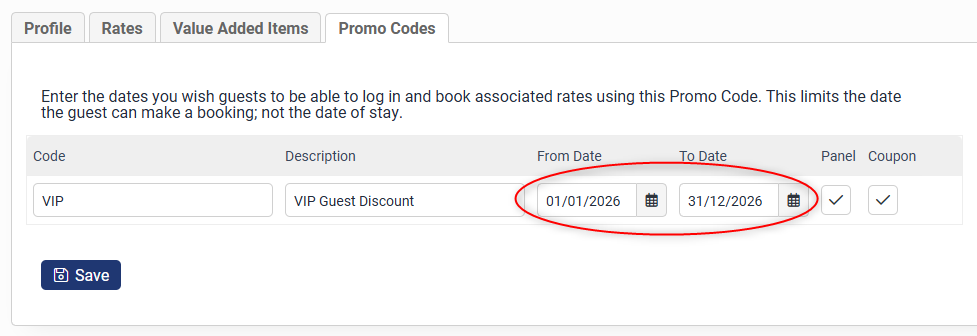
Tick Panel for the Promo Code box to display on the property website Booking Panel.
Tick Coupon for the Promo Code box to display on the property website payment page (another opportunity for the guest to enter the Promo Code given).
Click Save to save this Promo Code.
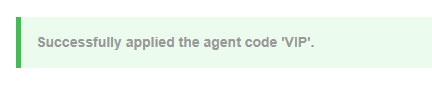
Once a guest enters the Promo Code in the Promo Code field of the property website, they will be offered rates associated with it:

If a property wishes to use a direct link for the Promo Code they will need to use this format - replace the bold text with the property URL and promo code required:
Example:
https://www.propertyurl.com.au/bookingSearch.html?promoCode=VIP
Client Profiles
Once a guest logs in to a Client Profile and performs a search, they will be able to book the rates you have assigned at the relevant discount:
You can view any bookings made by clicking Bookings next to that Client Profile, or by using that Client Profile as a filter via Booking Control:

To delete a Client Profile or Corporate Profile, simply click the trash can icon next to that Client Profile:
