Rooms
Overview
Click on Rooms in the menu
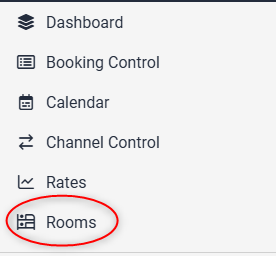
You will see a list of all the room types
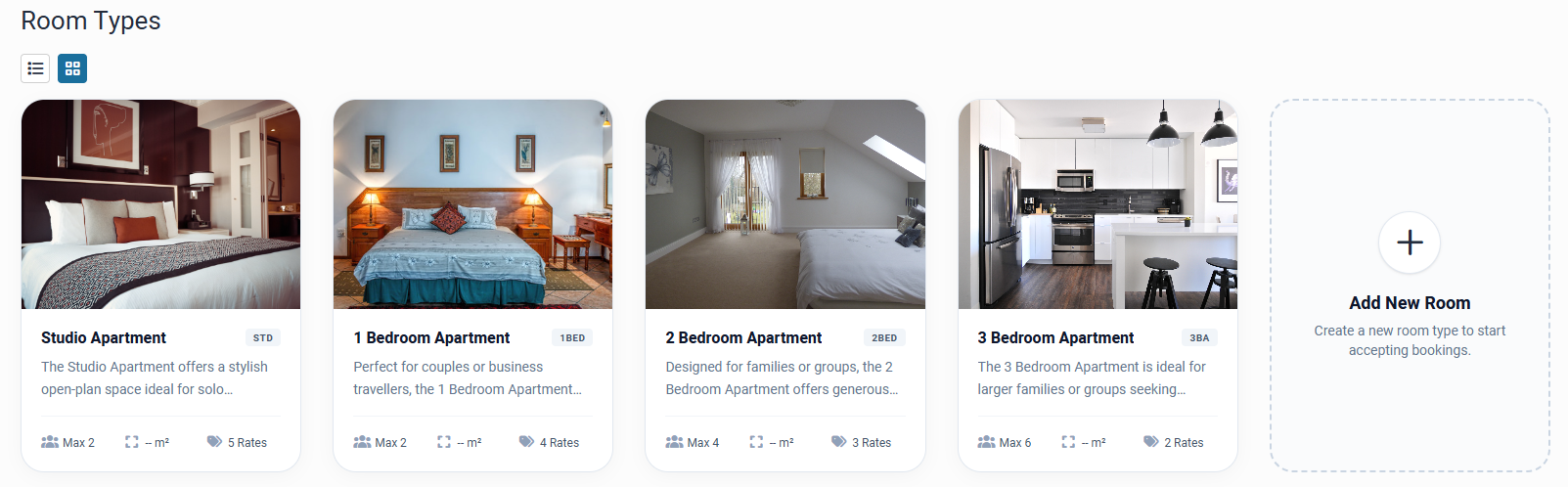
Use the toggle to switch between tile view and list view
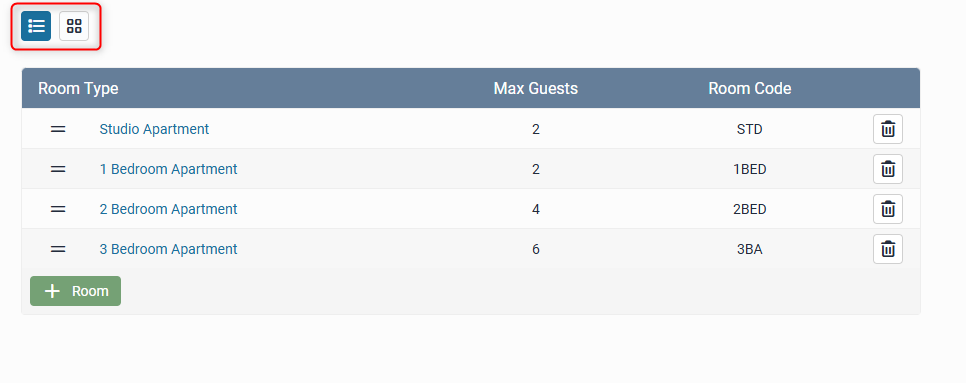
To edit an existing room type, click the room name.
Add New Room Type
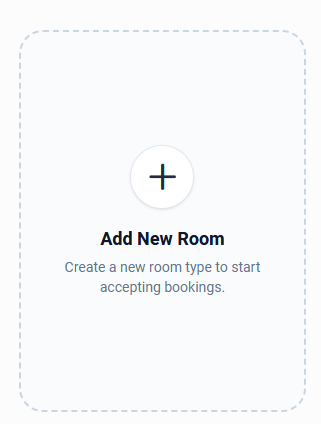
Click Add New Room to start creating a new room type:
General
Enter the Room Type Name and Room Code (short code only seen internally at the property)
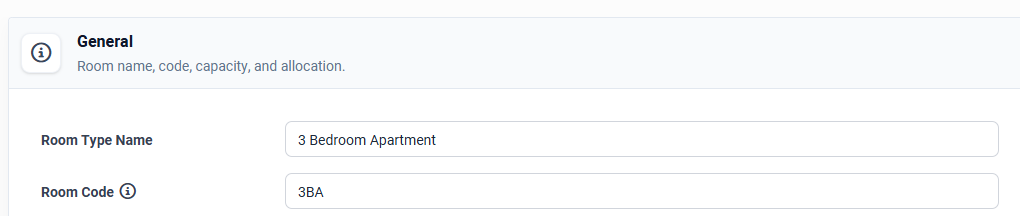
Physical Count (optional) - enter the true number of physical rooms you have of this room count. This is used for counting occupancy for certain features such as Auto Rate Management.
Default Allocation - Set the default number to what you want the website booking engine to make available for sale (this can be overridden in your calendar for specific dates, or WILL be overridden if you use a PMS)
Maximum Guests - the maximum number of guests which can stay in this room type (including on sofa beds, rollaways etc)
Room Size - Floor area of the room in square meters

Click Update to save the new room type.
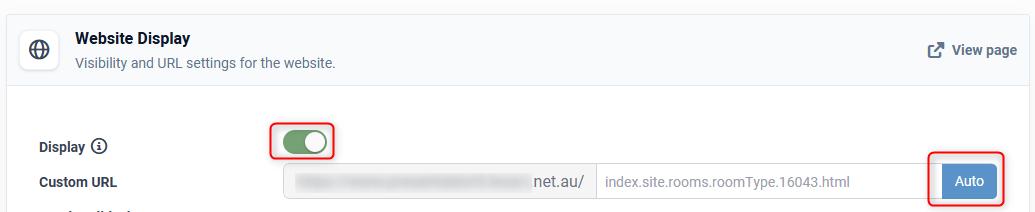
Website Display
Display - toggle this on to ensure this room page is visible on your website
Custom URL - click the Auto button to generate a URL based on the room name, or manually type in the URL
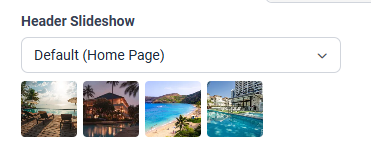
Header Slideshow - The Header Slideshow are the large image/s that display at the top of your website.
Use the dropdown to:
- Select an already created gallery
- Create a new gallery
- Apply a single media file
- Use the default gallery (what is assigned to the Home page)
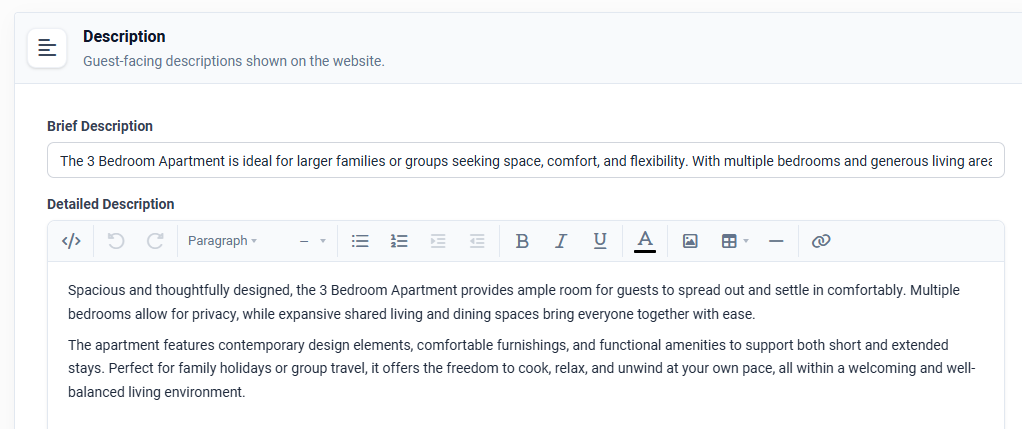
Description
Brief Description - a short (1-2 sentence) summary of the room type shown on the website
Detailed Description - the full description of the room type shown on the website and booking page
Gallery
Click the + icon to select the images for this room type.
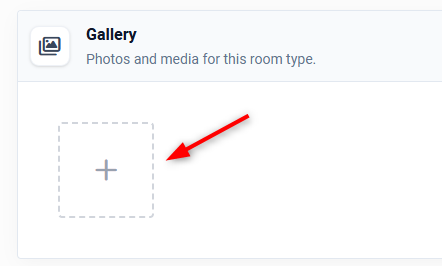
In the popup, select the relevant images > click Select X Images to save.
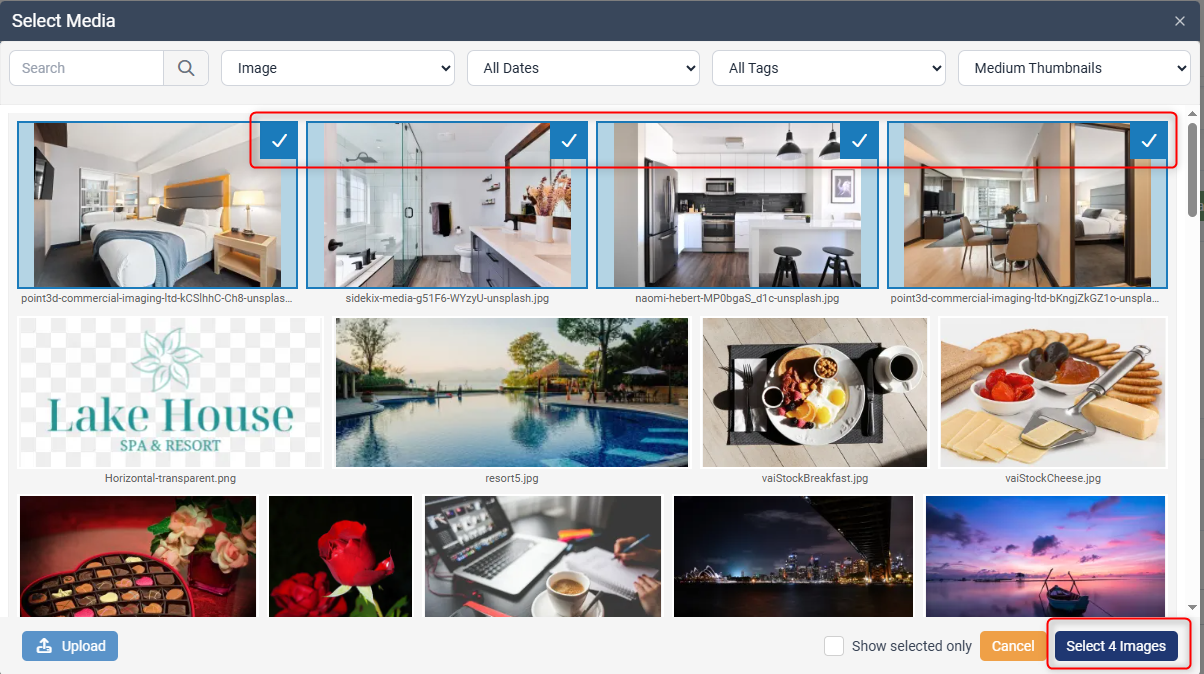
If your images are not yet uploaded to the Media Library, click the Upload button to upload the files from your computer.
Alerts
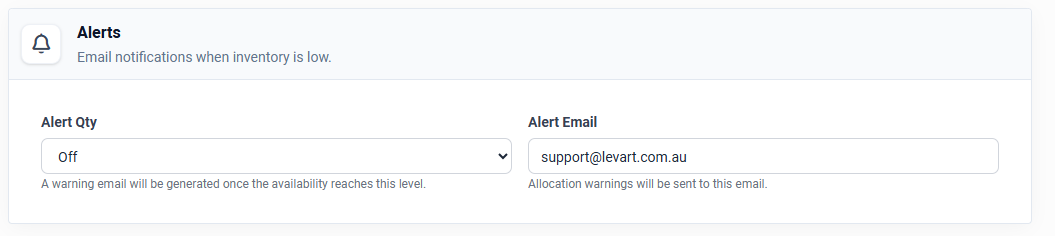
Your property will receive an email when you are down to your last rooms. E.g. You have allocated 10 rooms and have an Alert Qty of 1, you will obtain an email alert message when the number of rooms remaining equals 1. The alert will be sent to the email entered into the "alert email" field.
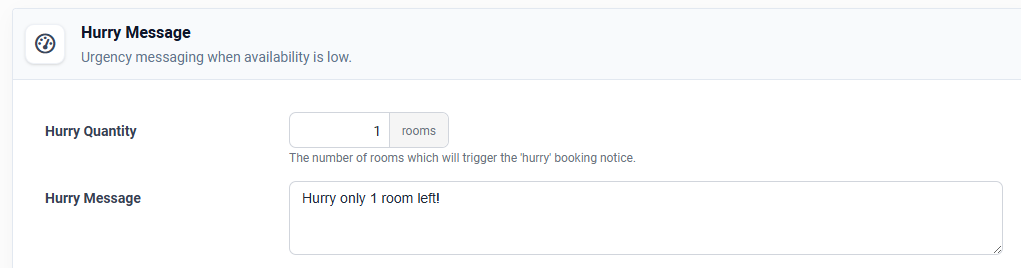
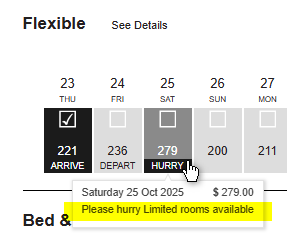
Hurry Message
Set the number of rooms remaining to trigger a "hurry" message on the booking page. The additional text entered into the Hurry Message will show when the user hovers over that date
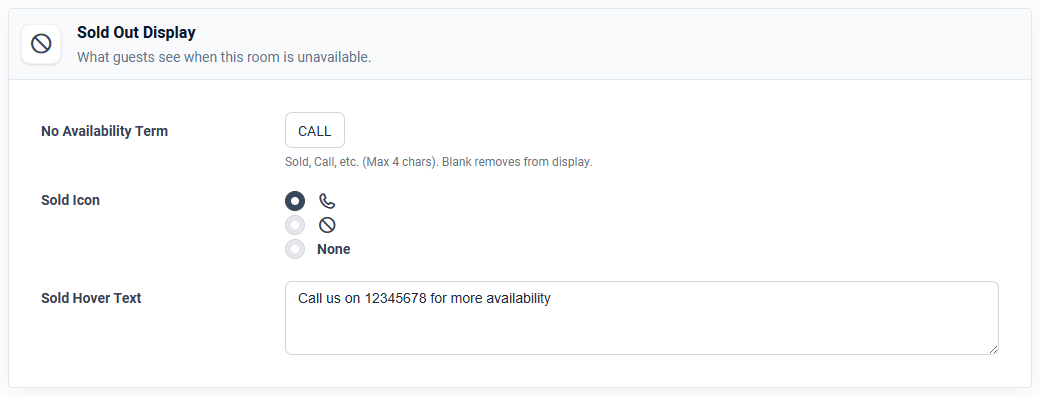
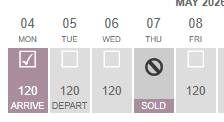
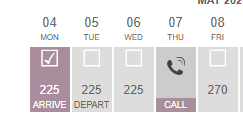
Sold Out Display
Set how the room displays on the booking grid when it is completely sold out on a day, e.g. "SOLD" or "CALL".
Bedding Configuration
This option allows guests to choose between different bedding options, for example if you have a king bed that splits into two singles.
To set up the bedding configuration for each room type, click + Add Option

Enter the bedding configuration. If a second option is required, click + Add Option and fill out the second line.

In the new blank line, enter in the second option

Repeat adding additional options for however many are required.
To delete a bedding option, click the Trash icon.
Booking Confirmation
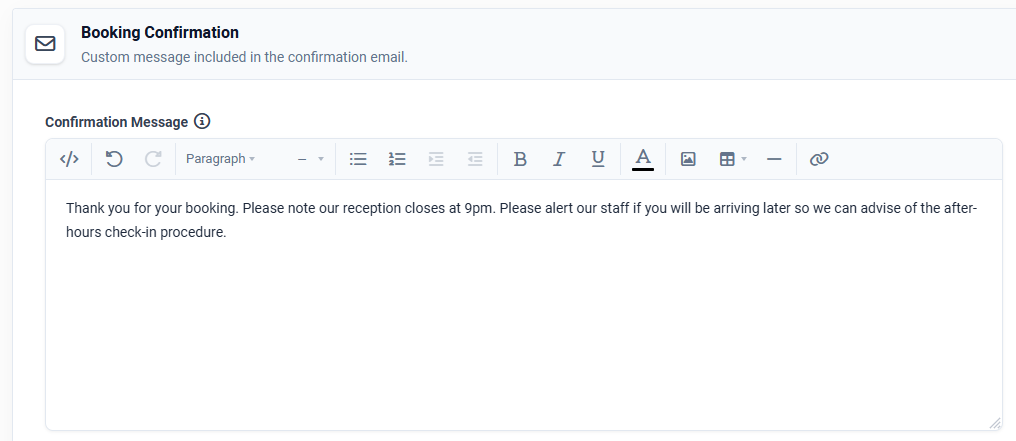
The confirmation message box allows you to place a message that will appear on the confirmation email to the guest. This message could be used to advise the guest on procedures checking in when arriving after the reception is closed, or any additional information they should have in their confirmation email.
This field is optional and can be left blank.
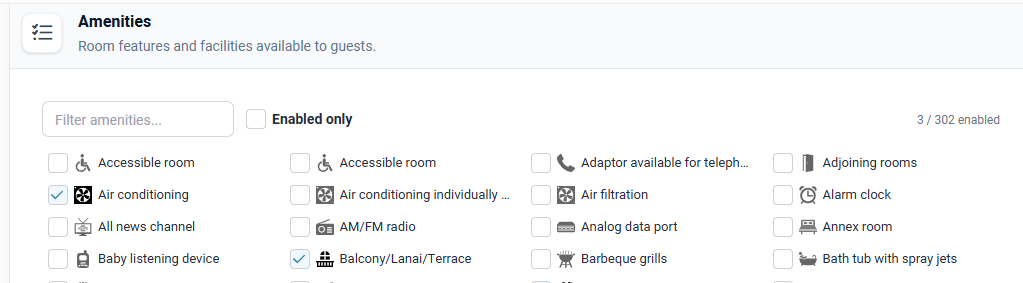
Amenities
Tick all the amenities that are applicable to the room type and save. The amenity names and icons will show on the booking search page.
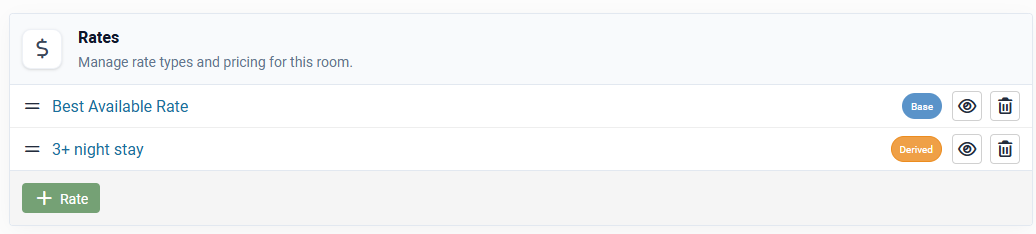
Rates
Add or edit your rates. For more detailed instructions on rates CLICK HERE.
If you are unsure of how to complete a particular section or are experiencing any difficulties with the setup, please feel free to contact Levart Support on 08 9382 8001 or at support@levart.com.au